> ## Documentation Index
> Fetch the complete documentation index at: https://docs.qxlabs.com/llms.txt
> Use this file to discover all available pages before exploring further.
# Chat
Chat is where you interact with your agents. The home screen is a chat, ready to go: type a question and press **Enter** to begin. Once a conversation has messages, a **New chat** button appears at the top right to start fresh.
## Pick an agent
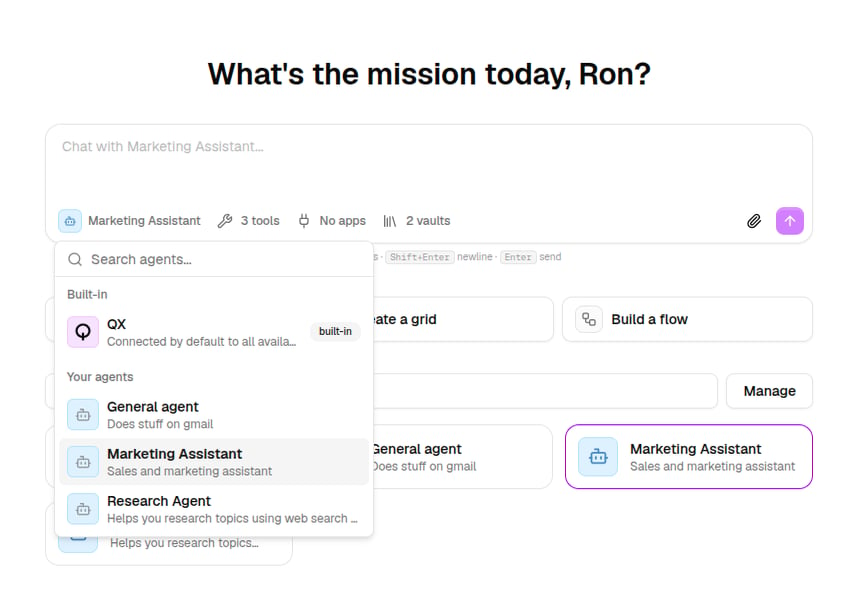
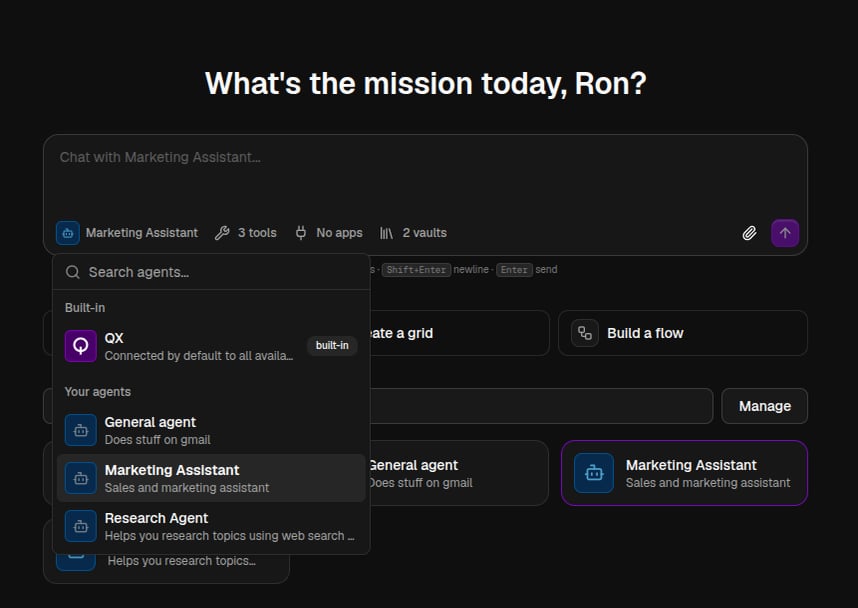
Every chat runs against an agent. New chats start with **QX**, the built-in default that's connected to all available tools and knowledge, so you can begin right away.
To use a different one, choose it from the agent grid on the home screen (search by name, or open the full list with **Manage**), or switch from inside the message box: click the agent's name at the bottom, or type **@** to search and choose. Your own agents and the built-in ones are listed separately. You can switch agents in the middle of a conversation, and the next reply comes from the agent you just picked while the history stays put.
 ## Set up the agent for this chat
Three controls at the bottom of the message box tune what the agent can use, just for this conversation, without changing the saved agent. Each shows a count so you can see what's active at a glance.
### Capabilities
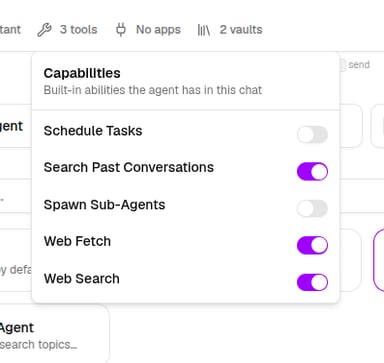
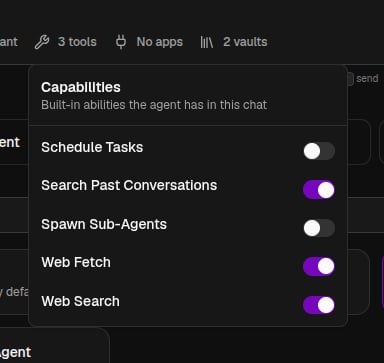
Toggle the agent's built-in abilities, such as web search or recalling past chats, on or off for this chat. See [Capabilities](/agents/capabilities).
## Set up the agent for this chat
Three controls at the bottom of the message box tune what the agent can use, just for this conversation, without changing the saved agent. Each shows a count so you can see what's active at a glance.
### Capabilities
Toggle the agent's built-in abilities, such as web search or recalling past chats, on or off for this chat. See [Capabilities](/agents/capabilities).
 ### Connected apps
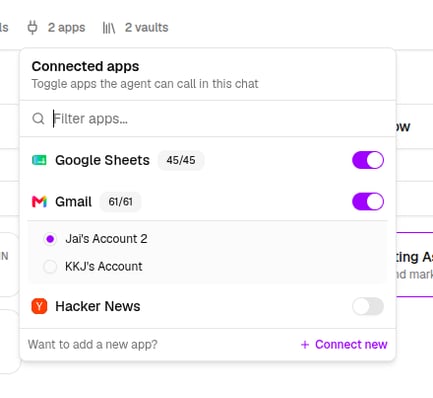
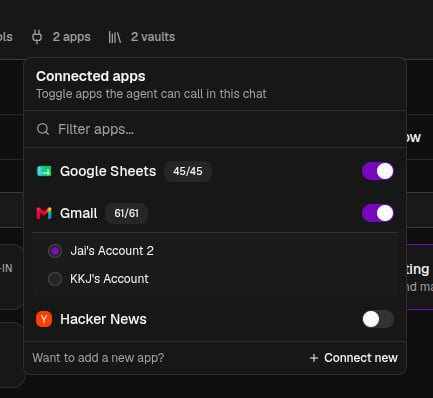
Toggle which of your [connected apps](/connected-apps/overview) the agent may call, filter to find one, and open **Manage tools** to choose exactly which of an app's tools it can use. Haven't connected anything yet? Use **Connect new** right here.
### Connected apps
Toggle which of your [connected apps](/connected-apps/overview) the agent may call, filter to find one, and open **Manage tools** to choose exactly which of an app's tools it can use. Haven't connected anything yet? Use **Connect new** right here.
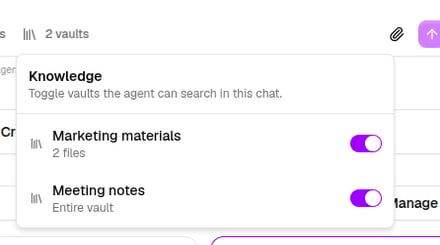
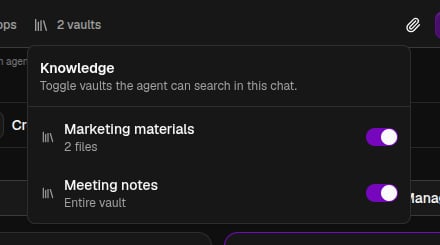
 ### Knowledge
Toggle the [knowledge vaults](/agents/apps-and-knowledge) the agent can search, and use **Configure scope** to limit it to certain folders or files. If the agent has no vaults attached, add them from the agent editor.
### Knowledge
Toggle the [knowledge vaults](/agents/apps-and-knowledge) the agent can search, and use **Configure scope** to limit it to certain folders or files. If the agent has no vaults attached, add them from the agent editor.
 ## Attach files and write your prompt
Add files by dragging them onto the chat or pasting from your clipboard. You can attach images and common document and spreadsheet formats, and, for agents with [Workspace Access](/agents/persistent-workspace), audio and video.
The message box shows **Ask anything, type @ to switch agents**. Press **Enter** to send, or **Shift+Enter** for a new line.
## Run the agent
Send your message and the reply streams in. While it's working, **Stop generating** halts the response. Anything you type meanwhile is **queued** and sent as one follow-up when the reply finishes, or choose **Send now** to fold it into the reply already in progress. Leaving the page mid-reply asks you to confirm, so you don't lose it. Every answer has a **Copy** button to grab its text.
## Review the response
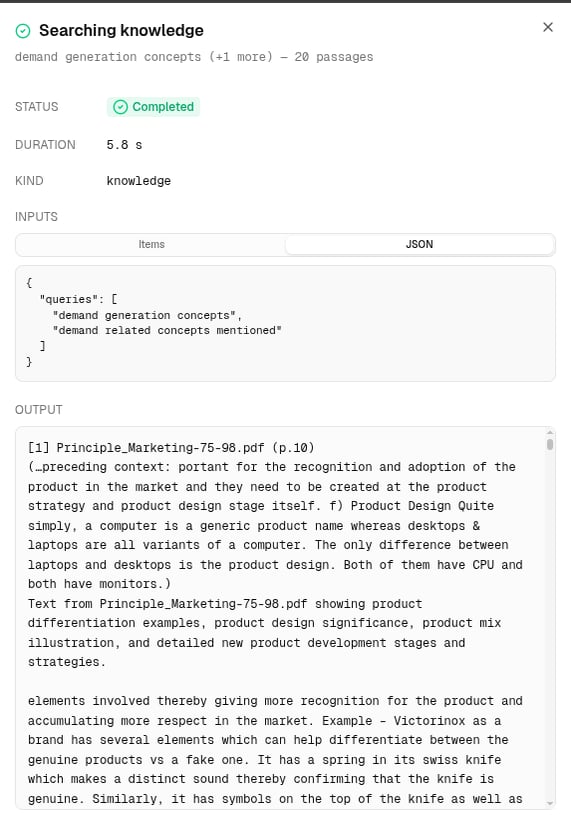
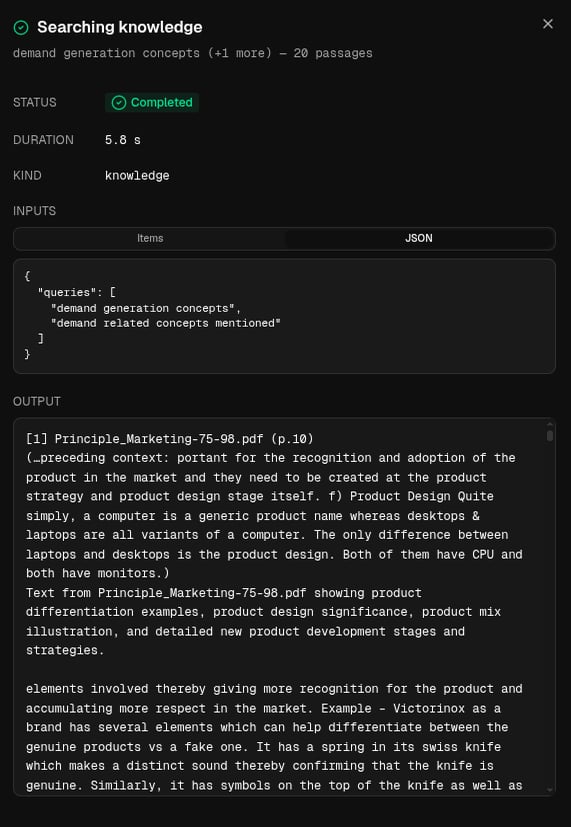
As the agent works, its steps appear as **tool calls** in the conversation, grouped into a collapsible activity area. Click any tool call to open a panel with its **Status**, **Duration**, and the **Inputs** and **Output** it used.
## Attach files and write your prompt
Add files by dragging them onto the chat or pasting from your clipboard. You can attach images and common document and spreadsheet formats, and, for agents with [Workspace Access](/agents/persistent-workspace), audio and video.
The message box shows **Ask anything, type @ to switch agents**. Press **Enter** to send, or **Shift+Enter** for a new line.
## Run the agent
Send your message and the reply streams in. While it's working, **Stop generating** halts the response. Anything you type meanwhile is **queued** and sent as one follow-up when the reply finishes, or choose **Send now** to fold it into the reply already in progress. Leaving the page mid-reply asks you to confirm, so you don't lose it. Every answer has a **Copy** button to grab its text.
## Review the response
As the agent works, its steps appear as **tool calls** in the conversation, grouped into a collapsible activity area. Click any tool call to open a panel with its **Status**, **Duration**, and the **Inputs** and **Output** it used.
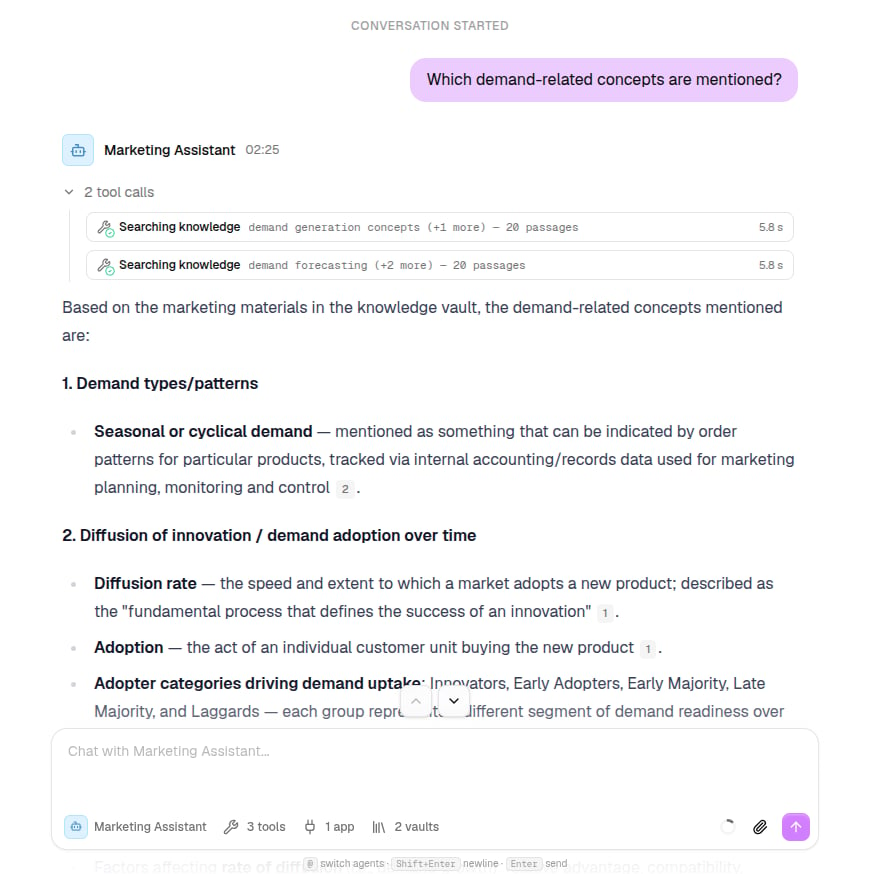
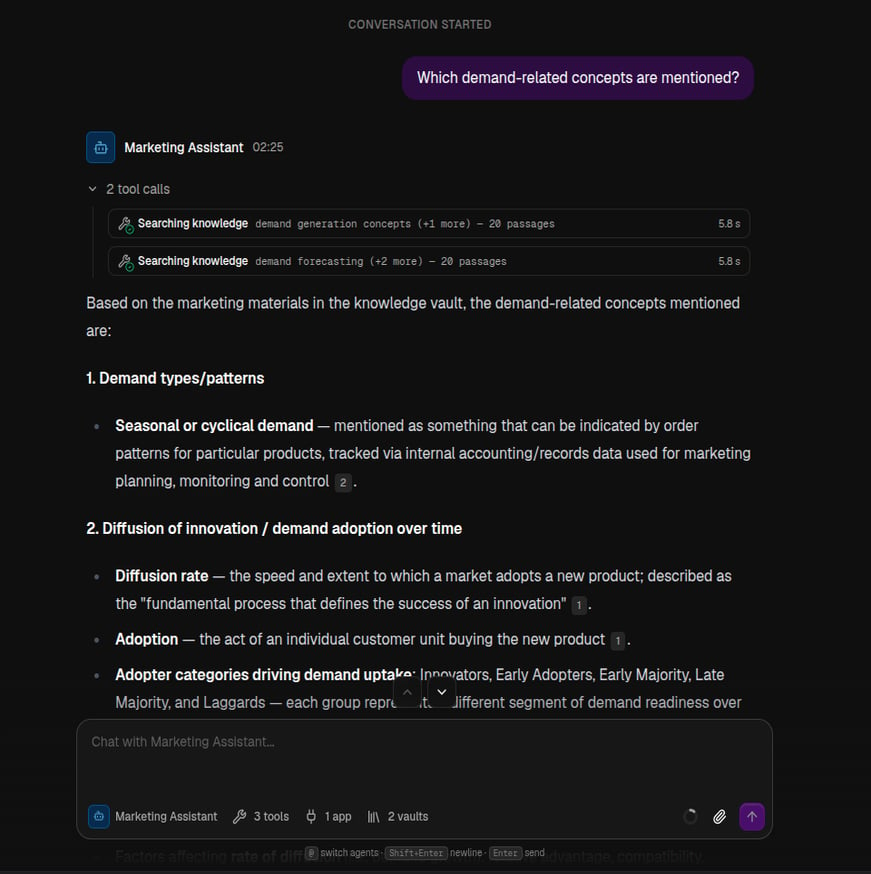
 When an answer draws on the web or your knowledge, numbered citations appear in the text and a **Sources** button lists every reference, each linking back to the original.
A small ring by the send button shows how full the conversation's context is. Long chats are summarized automatically so they keep going. If that's turned off for the agent, a **Summarize** button appears once the context fills up.
The top of the chat shows a status dot for your organization's [workspace](/agents/persistent-workspace): green when it's ready, amber while it's being set up. Some abilities stay unavailable until it's ready.
## Manage your chats
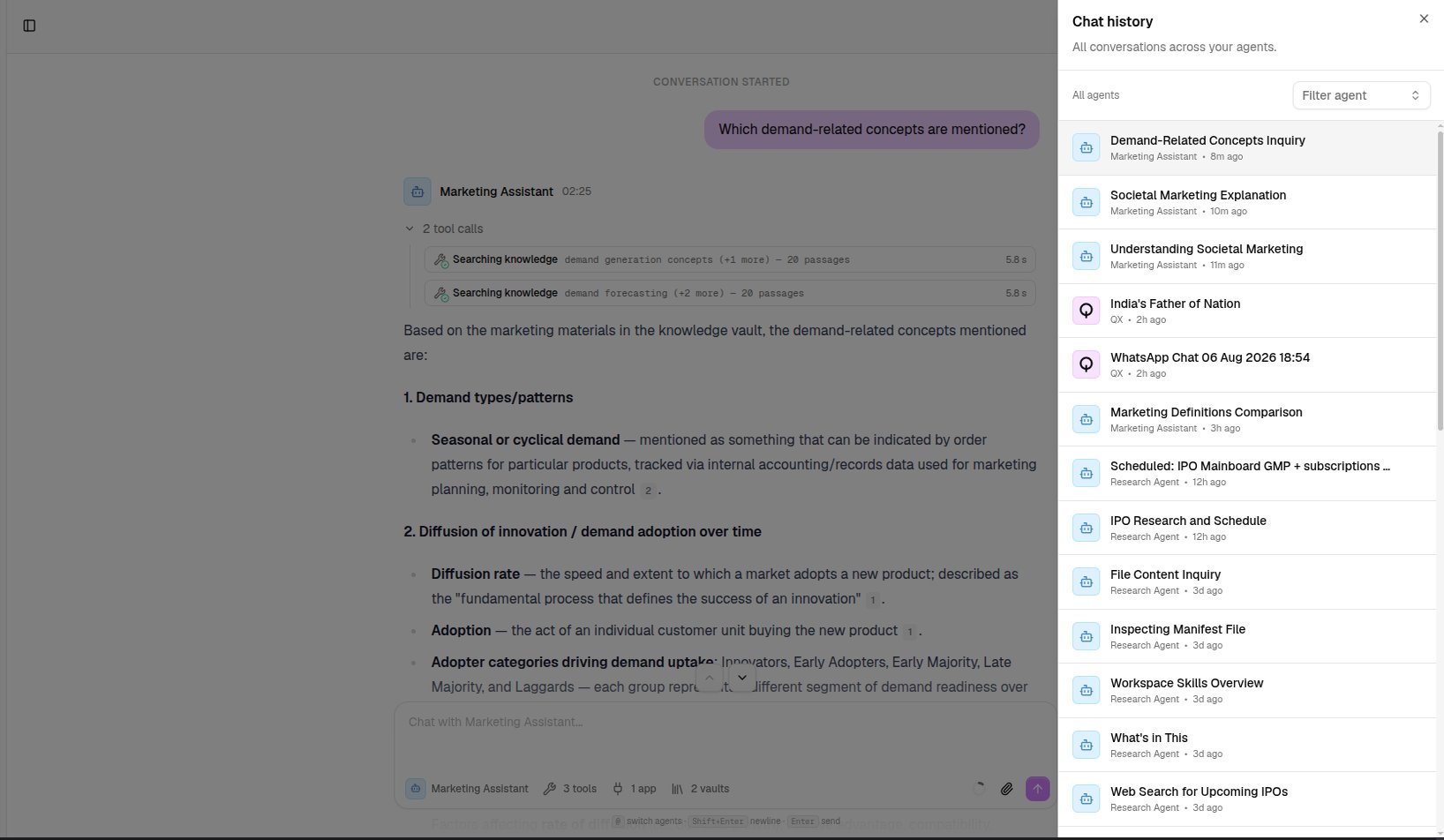
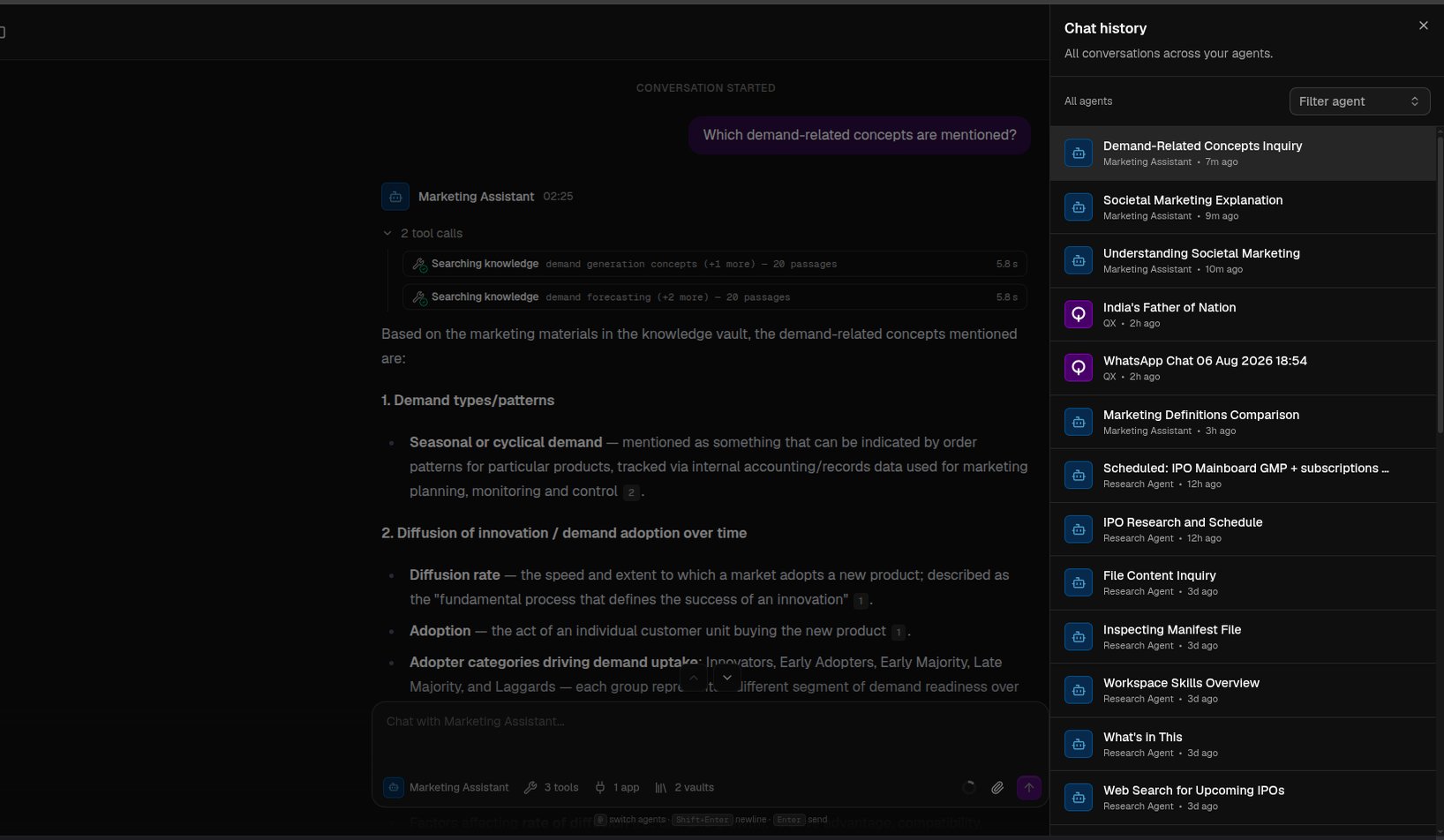
Open **History** at the top of any chat to see all your conversations, newest first. Filter by agent, then open one to pick up where you left off. To remove a conversation, hover it and choose **Delete chat**. Deleting is permanent.
When an answer draws on the web or your knowledge, numbered citations appear in the text and a **Sources** button lists every reference, each linking back to the original.
A small ring by the send button shows how full the conversation's context is. Long chats are summarized automatically so they keep going. If that's turned off for the agent, a **Summarize** button appears once the context fills up.
The top of the chat shows a status dot for your organization's [workspace](/agents/persistent-workspace): green when it's ready, amber while it's being set up. Some abilities stay unavailable until it's ready.
## Manage your chats
Open **History** at the top of any chat to see all your conversations, newest first. Filter by agent, then open one to pick up where you left off. To remove a conversation, hover it and choose **Delete chat**. Deleting is permanent.