> ## Documentation Index
> Fetch the complete documentation index at: https://docs.qxlabs.com/llms.txt
> Use this file to discover all available pages before exploring further.
# External WhatsApp agents
> Build an agent that answers your customers on a WhatsApp number.
export const platform = {
home: "https://app.qxlabs.com",
chat: "https://app.qxlabs.com/chat",
agents: "https://app.qxlabs.com/agents",
agentSchedules: "https://app.qxlabs.com/agents/schedules",
flows: "https://app.qxlabs.com/flows",
flowExecutions: "https://app.qxlabs.com/flows/executions",
grids: "https://app.qxlabs.com/grids",
pages: "https://app.qxlabs.com/pages",
knowledge: "https://app.qxlabs.com/knowledge",
connectedApps: "https://app.qxlabs.com/credentials",
settingsChannels: "https://app.qxlabs.com/settings/channels",
settingsWhatsApp: "https://app.qxlabs.com/settings/whatsapp",
settingsAuthorizedApps: "https://app.qxlabs.com/settings/authorized-apps",
usage: "https://app.qxlabs.com/usage",
billing: "https://app.qxlabs.com/billing",
team: "https://app.qxlabs.com/account/team",
explore: "https://app.qxlabs.com/explore",
exploreSkills: "https://app.qxlabs.com/explore/skills"
};
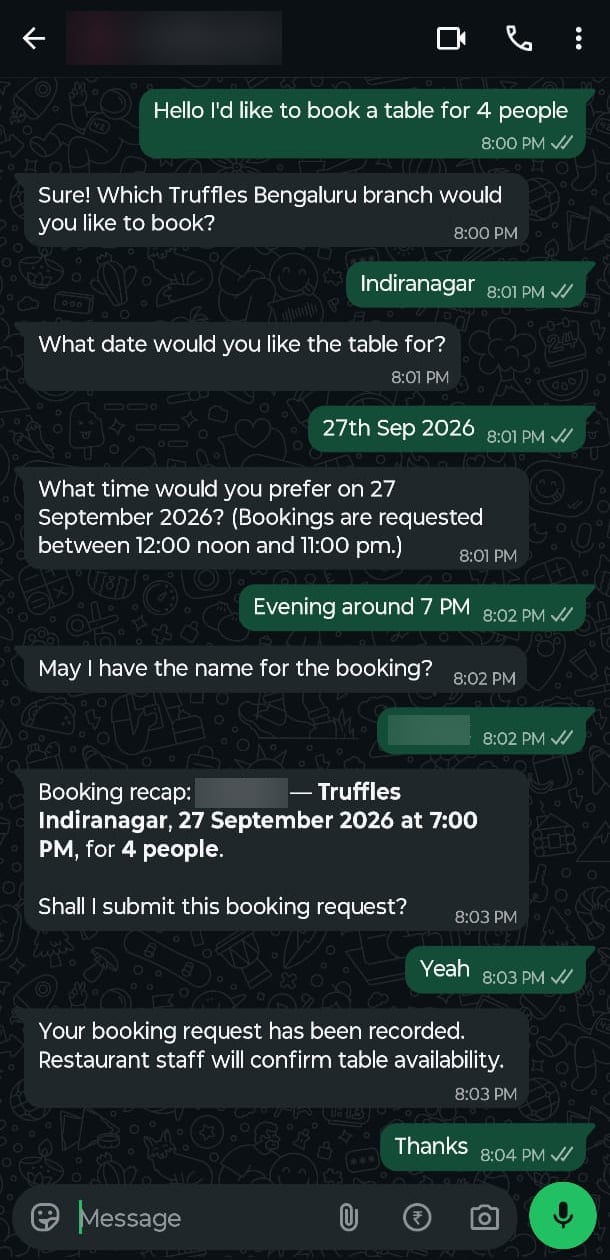
An external WhatsApp agent answers your customers on WhatsApp. You build the agent, connect a WhatsApp number to it, and from then on it replies to everyone who messages that number. It only ever replies and never messages anyone first.
 ## Build the agent and connect a number
Go to **Agents** → **New Agent**, choose **External**, and describe the job in the **Chat** sidebar. The builder writes the instructions and sets up the actions for you, see [Build with AI](/agents/create-an-agent/build-with-ai). Click **Test in chat** to try the agent before any customer does.
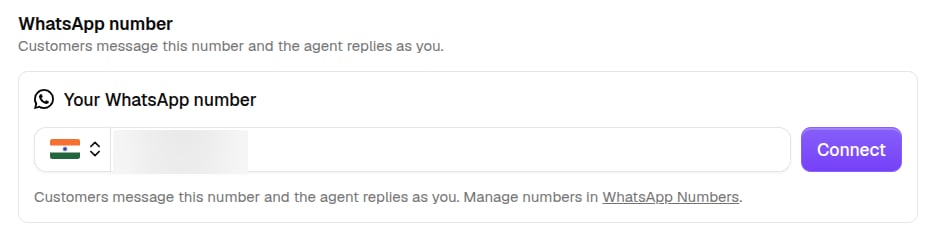
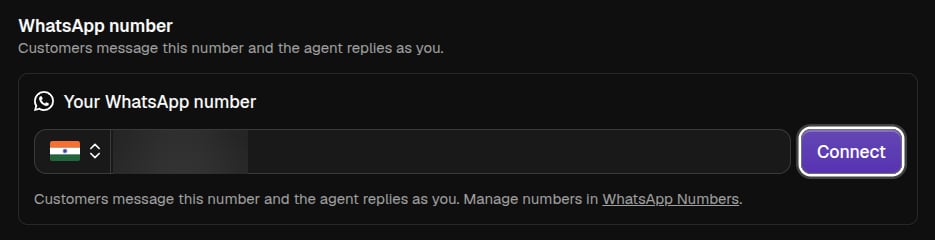
Once the agent is saved, go to its **WhatsApp number** section, type the number, and click **Connect**.
## Build the agent and connect a number
Go to **Agents** → **New Agent**, choose **External**, and describe the job in the **Chat** sidebar. The builder writes the instructions and sets up the actions for you, see [Build with AI](/agents/create-an-agent/build-with-ai). Click **Test in chat** to try the agent before any customer does.
Once the agent is saved, go to its **WhatsApp number** section, type the number, and click **Connect**.
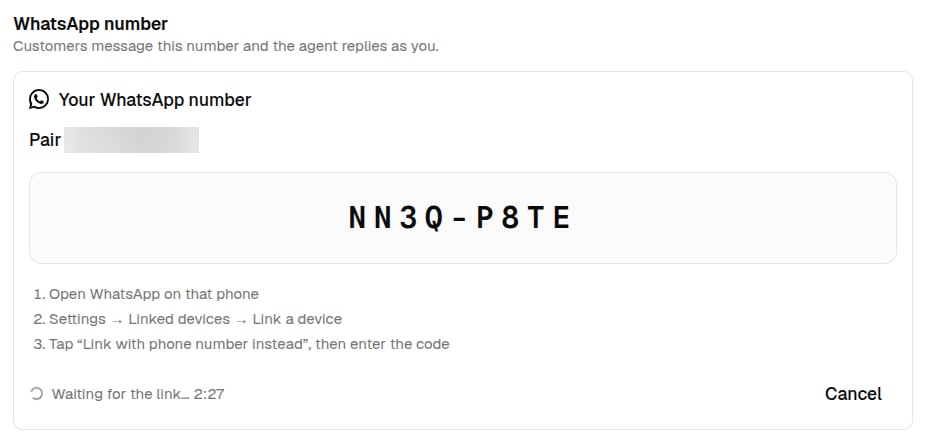
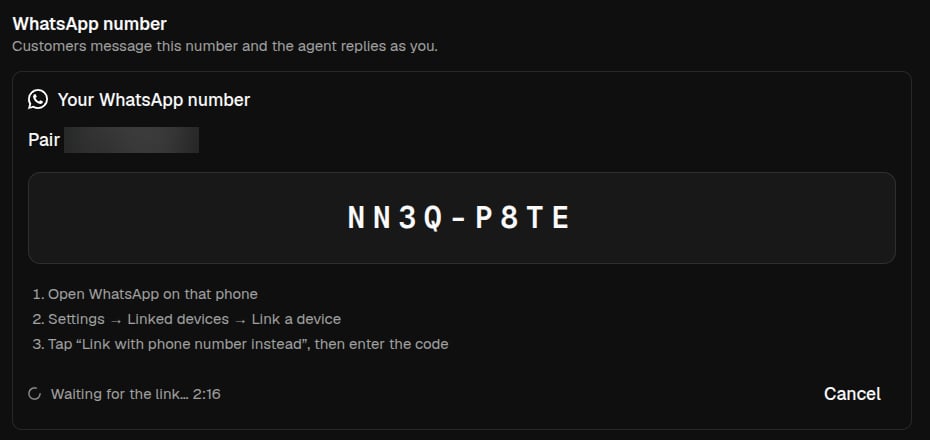
 A code appears. On the phone, open WhatsApp and go to **Settings** → **Linked devices** → **Link a device** → **Link with phone number instead**, then enter the code. The number links up like WhatsApp Web, and the agent starts replying.
 One agent answers on one number, and one number belongs to one agent. If the number is already used by another agent, you'll be asked to move it. **Disconnect** stops the agent answering and frees the number for another agent.
## Manage your numbers
**Settings → WhatsApp Numbers** lists every number you've connected and the agent answering on each. Click the agent's name to open its editor and change it.
One agent answers on one number, and one number belongs to one agent. If the number is already used by another agent, you'll be asked to move it. **Disconnect** stops the agent answering and frees the number for another agent.
## Manage your numbers
**Settings → WhatsApp Numbers** lists every number you've connected and the agent answering on each. Click the agent's name to open its editor and change it.
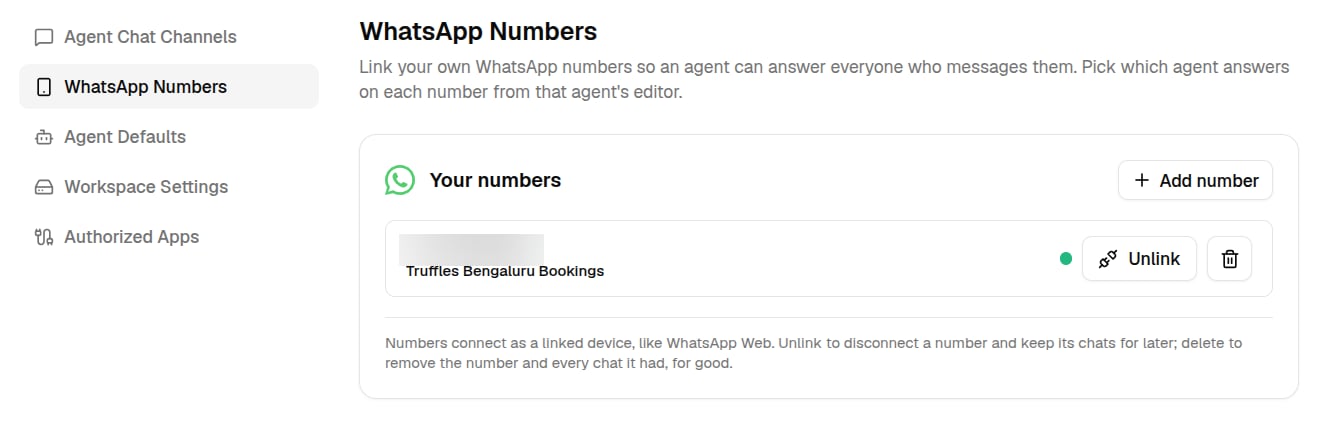
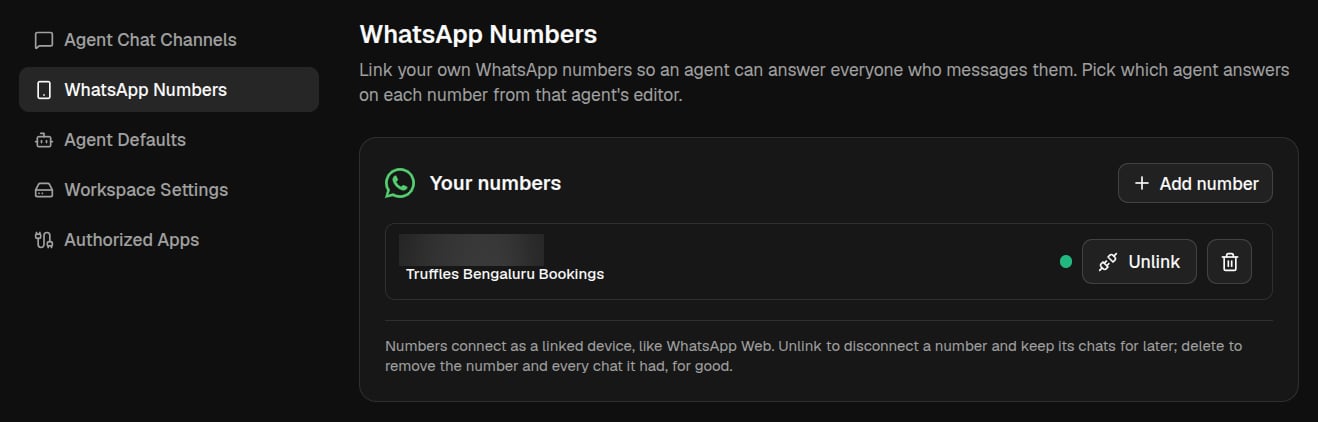 * **Add number** connects a new number. Type it, get a code, and enter the code on your phone, the same as in the agent editor. Pick its agent from that agent's editor.
* **Unlink** disconnects a number but keeps its agent and chats. **Pair** connects it again.
* **Delete** removes the number and every chat it had.
## What the agent can use
Strangers talk to this agent, so it gets less than your other agents. It can use:
* Its instructions and the [knowledge vaults](/knowledge/overview) you attach.
* **Web Search** and **Web Fetch**.
* **Actions**, single tasks in your apps that the builder sets up, like adding a row to one sheet or an event to one calendar.
* **Add number** connects a new number. Type it, get a code, and enter the code on your phone, the same as in the agent editor. Pick its agent from that agent's editor.
* **Unlink** disconnects a number but keeps its agent and chats. **Pair** connects it again.
* **Delete** removes the number and every chat it had.
## What the agent can use
Strangers talk to this agent, so it gets less than your other agents. It can use:
* Its instructions and the [knowledge vaults](/knowledge/overview) you attach.
* **Web Search** and **Web Fetch**.
* **Actions**, single tasks in your apps that the builder sets up, like adding a row to one sheet or an event to one calendar.
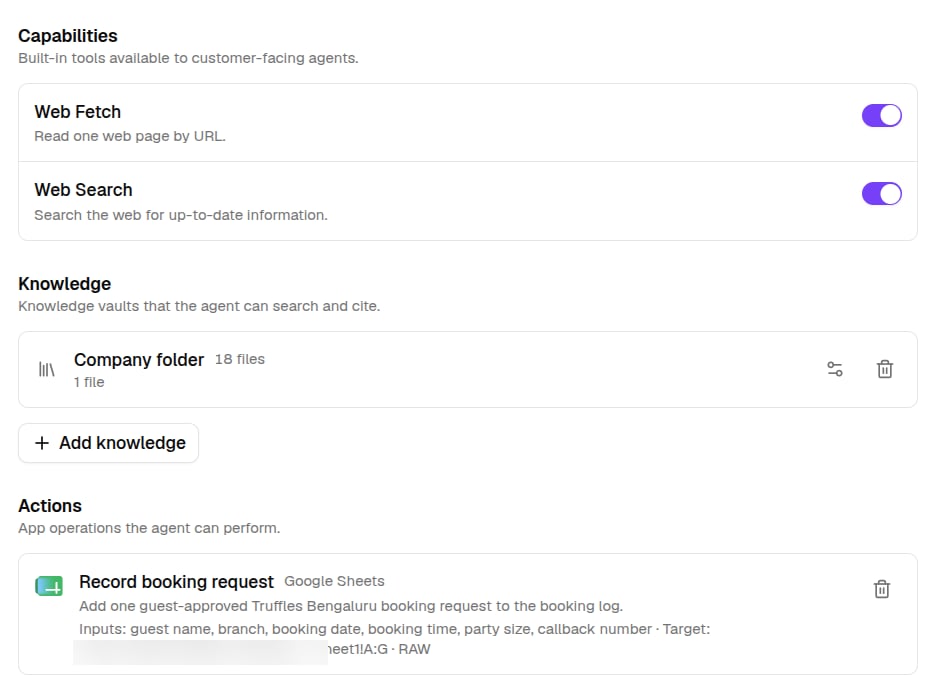
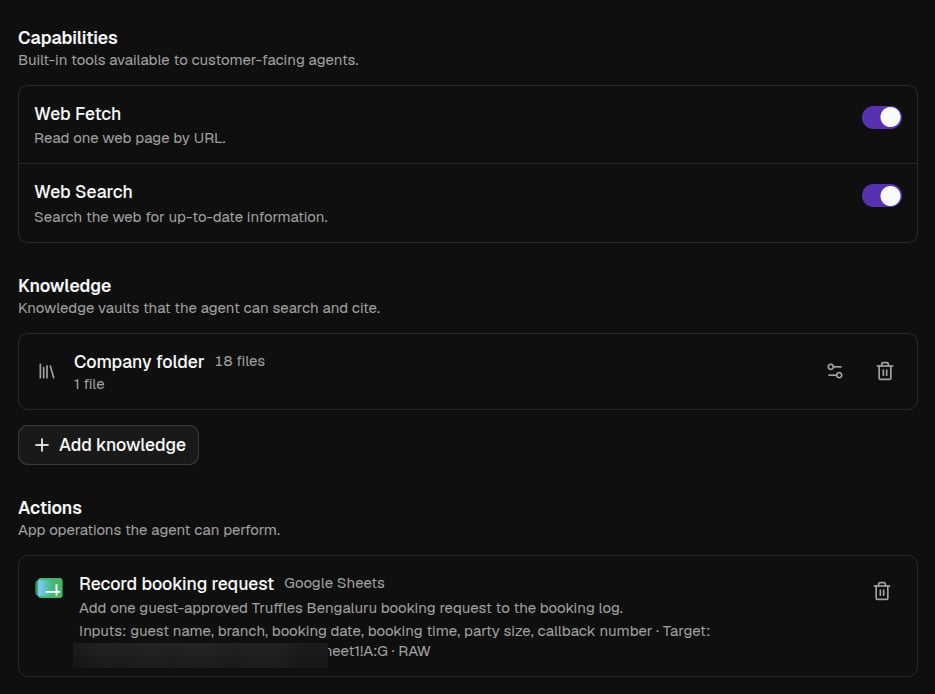 It has no workspace and no direct access to your connected apps, so customers can't reach anything you didn't approve.