> ## Documentation Index
> Fetch the complete documentation index at: https://docs.qxlabs.com/llms.txt
> Use this file to discover all available pages before exploring further.
# Scopes and permissions
> How agent access is scoped: connected apps down to individual tools and accounts, knowledge vaults down to folders and files, with you in control.
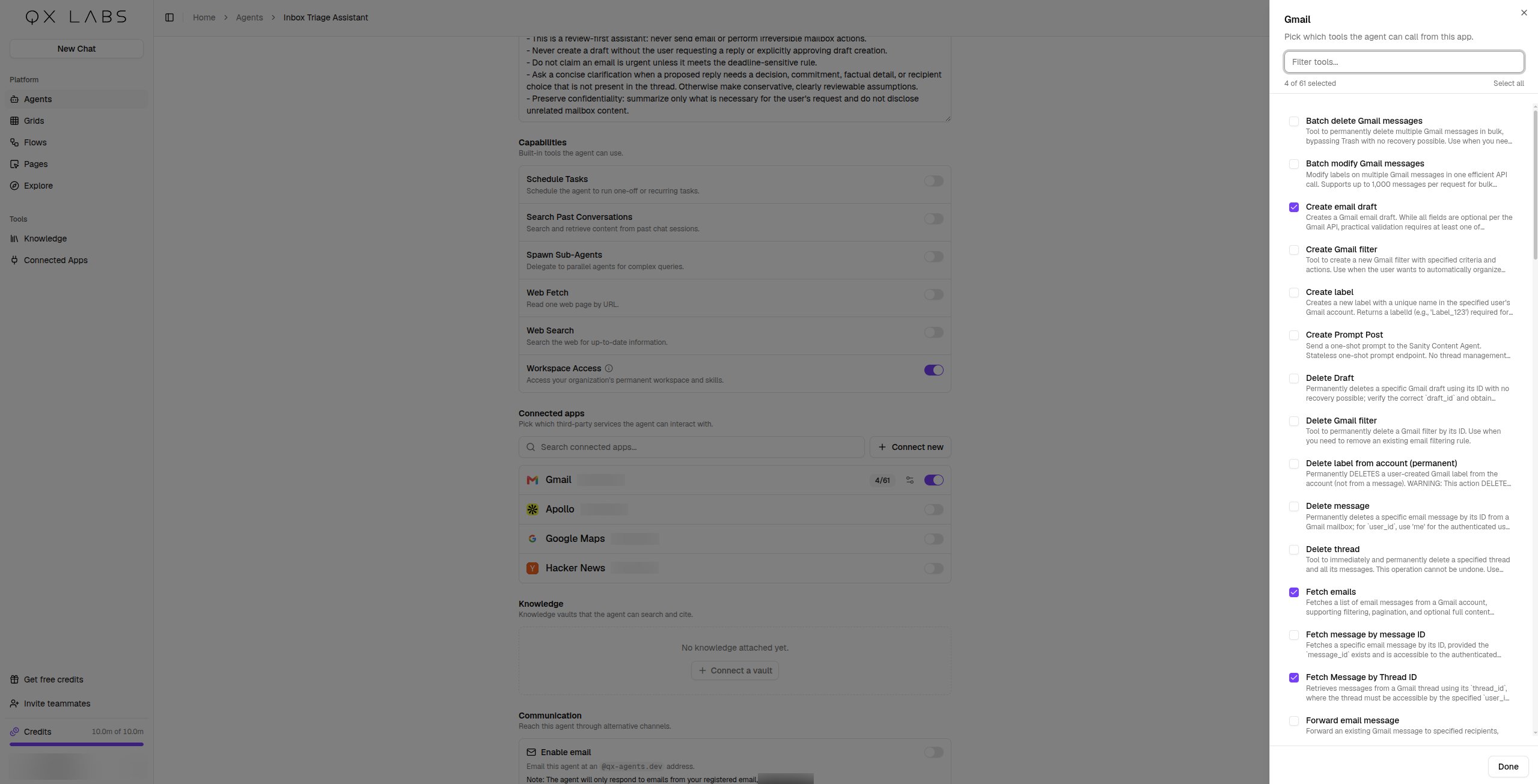
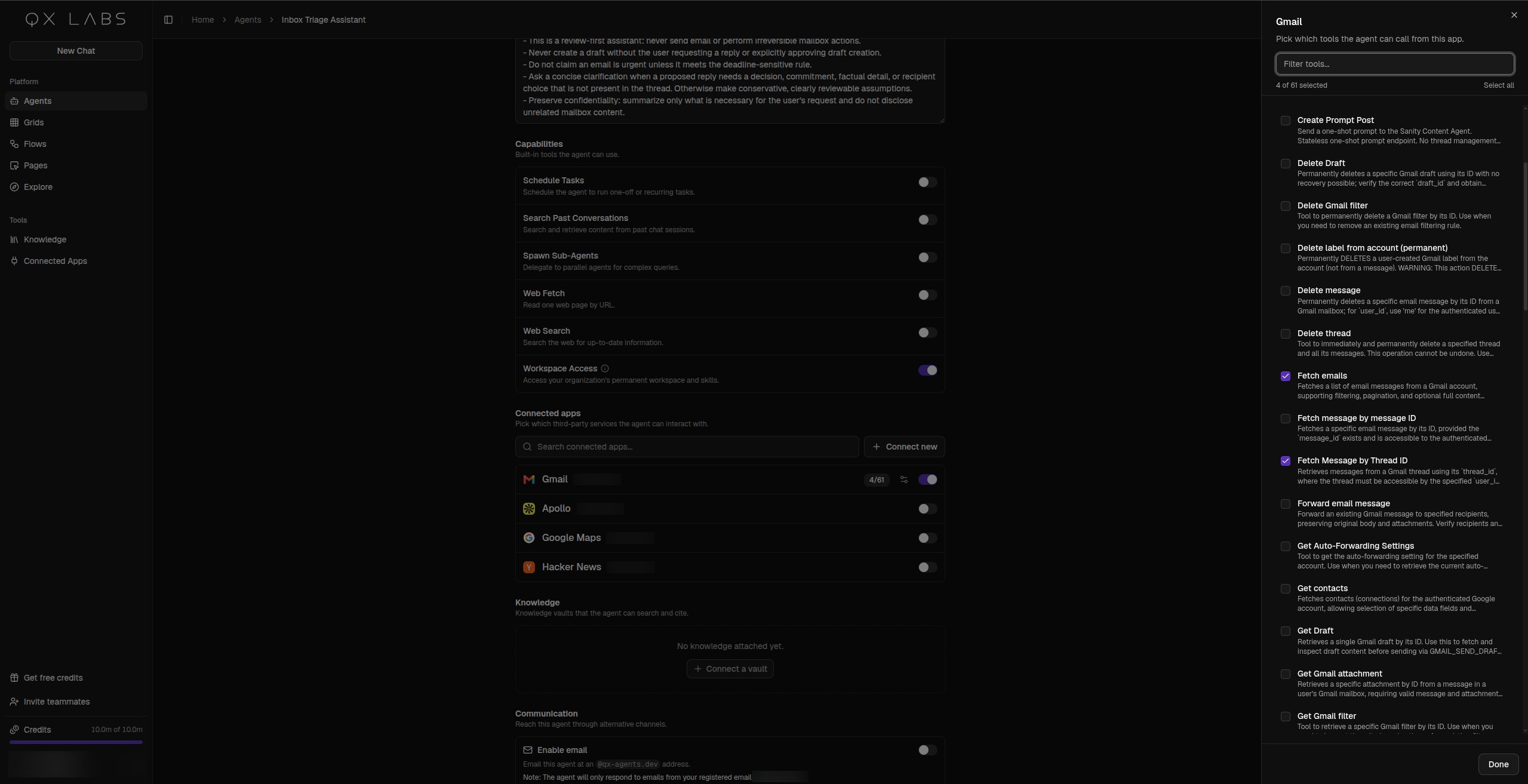
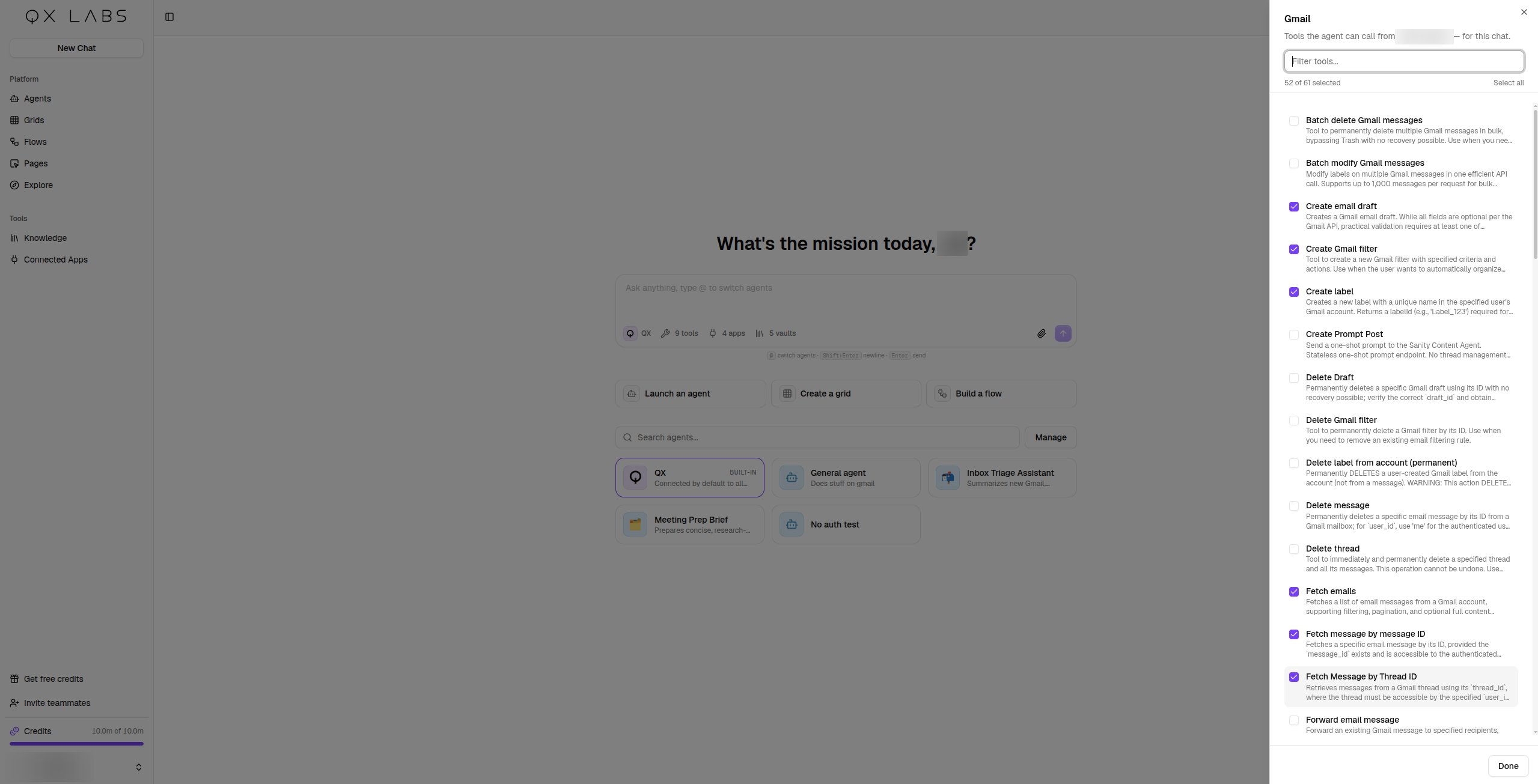
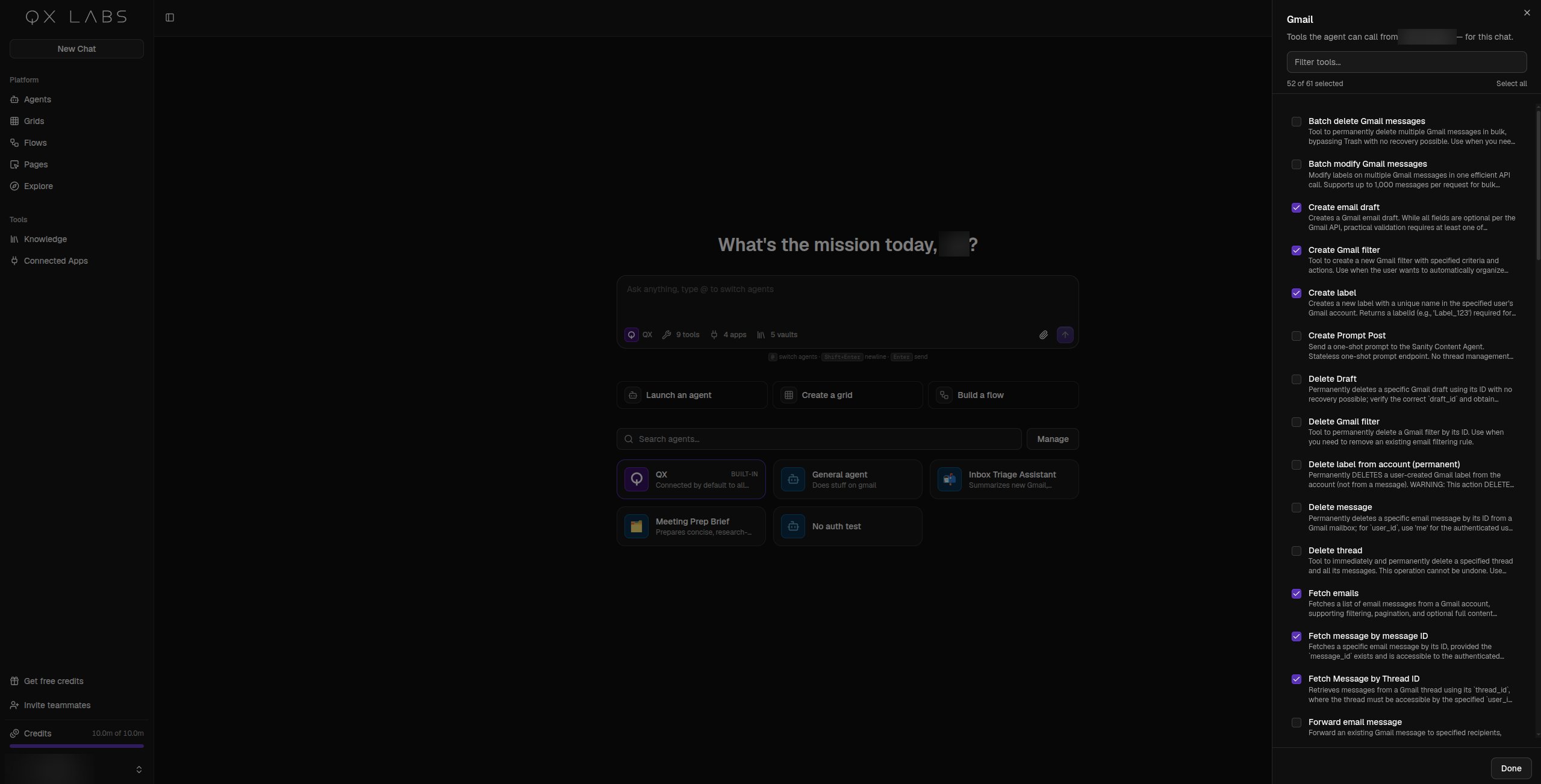
Everything an agent can reach is scoped: its [connected apps](/agents/apps-and-knowledge) down to individual tools and the account it acts as, and its knowledge vaults down to folders or files. Untick a tool and that action is out of reach entirely.
## You stay in control
An agent chooses only the proper scopes for the job, the [builder](/agents/create-an-agent/build-with-ai) connects the exact tools it needs, never the whole app. You can always change this while editing the agent, in its **Connected apps** and **Knowledge** sections, and you can change it while chatting too, just tell the agent. Every choice stays visible in the editor, so nothing is ever hidden from you.
 ## Scope a vault to folders or files
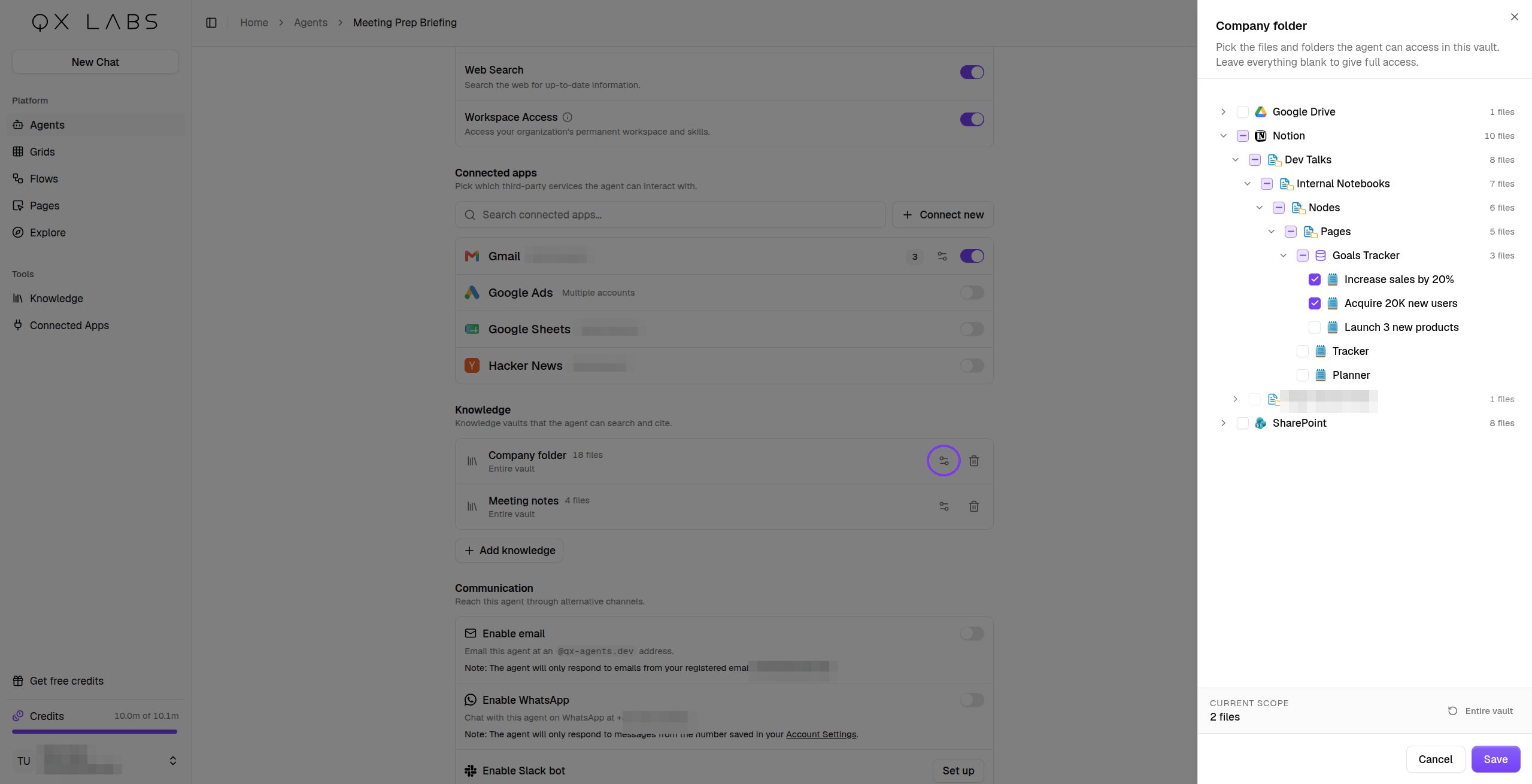
A vault you attach in the agent editor's **Knowledge** section starts fully open, its row reads **Entire vault** and the agent can search everything in it. To narrow it, click **Configure scope** on the vault's row. The vault's contents appear as a tree of checkboxes, tick the folders or files you want the agent to use. Ticking a folder includes everything inside it, and you can untick individual files within to leave just those out. Click **Save** to apply. The **Entire vault** button clears your picks and restores full access, and leaving everything unticked means full access too, so an untouched vault never locks the agent out.
## Scope a vault to folders or files
A vault you attach in the agent editor's **Knowledge** section starts fully open, its row reads **Entire vault** and the agent can search everything in it. To narrow it, click **Configure scope** on the vault's row. The vault's contents appear as a tree of checkboxes, tick the folders or files you want the agent to use. Ticking a folder includes everything inside it, and you can untick individual files within to leave just those out. Click **Save** to apply. The **Entire vault** button clears your picks and restores full access, and leaving everything unticked means full access too, so an untouched vault never locks the agent out.
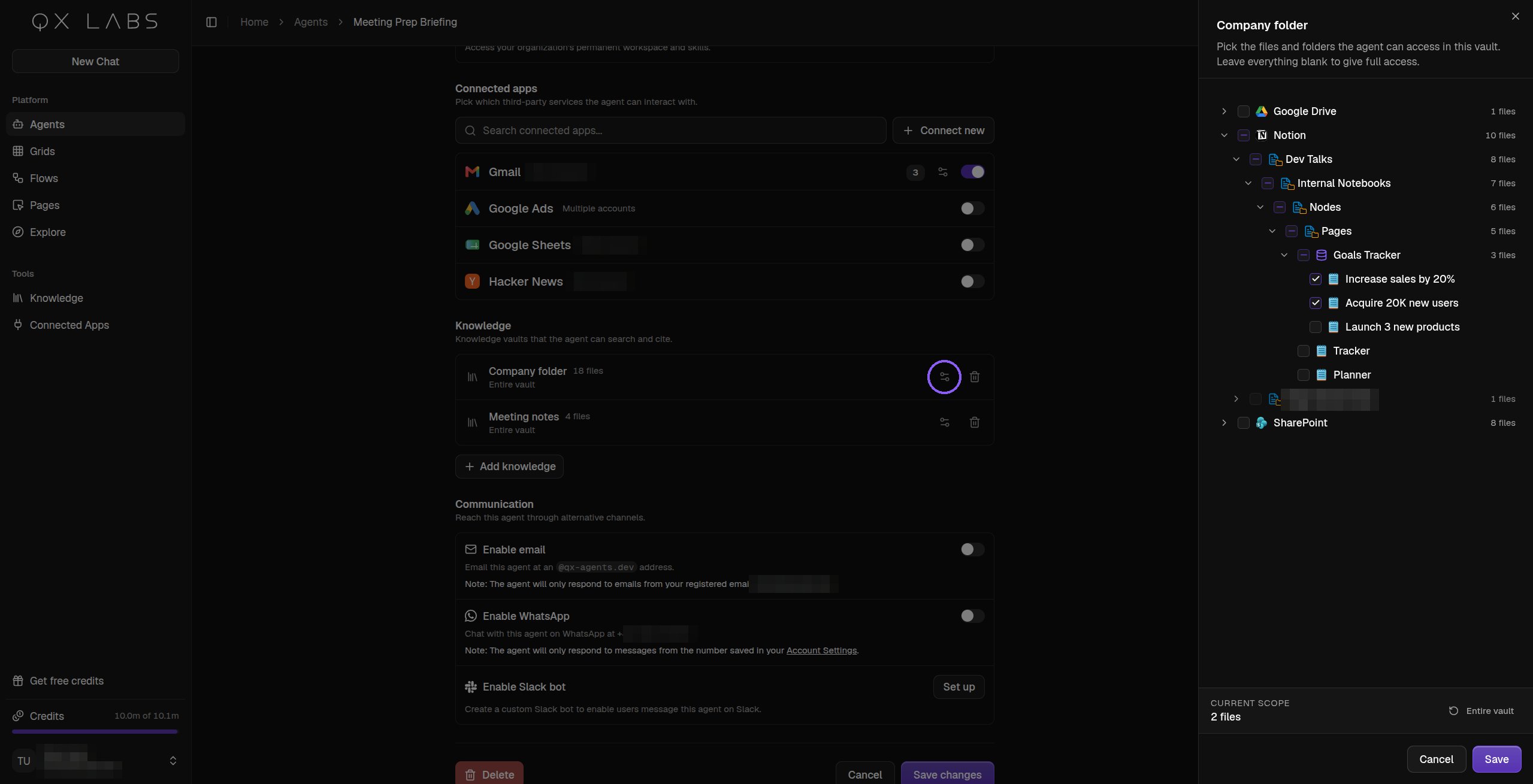
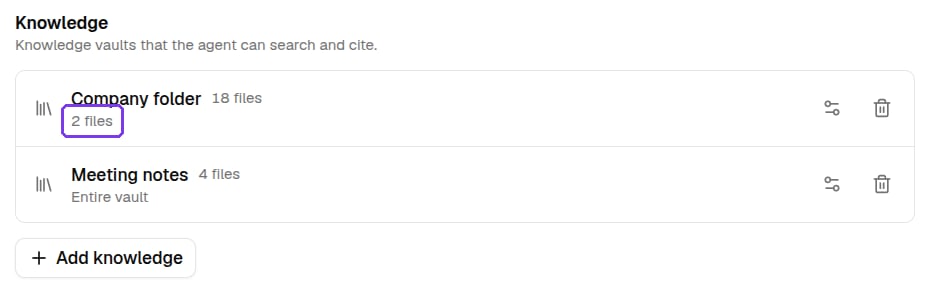
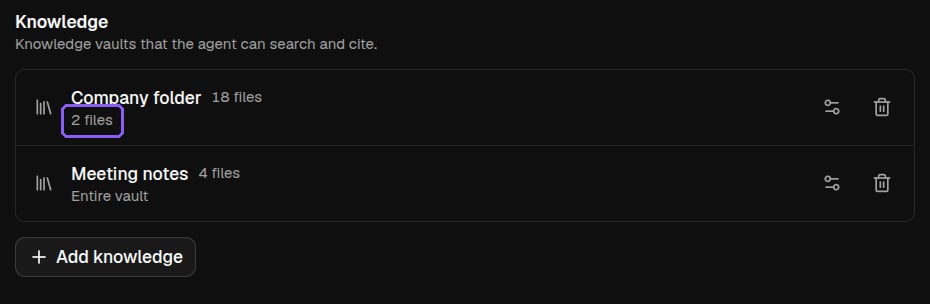 Once saved, the vault's row shows a short summary of what you picked, and that selection is all the agent gets. It searches and cites only the folders and files in scope, the rest of the vault is invisible to it.
## Scope a single conversation
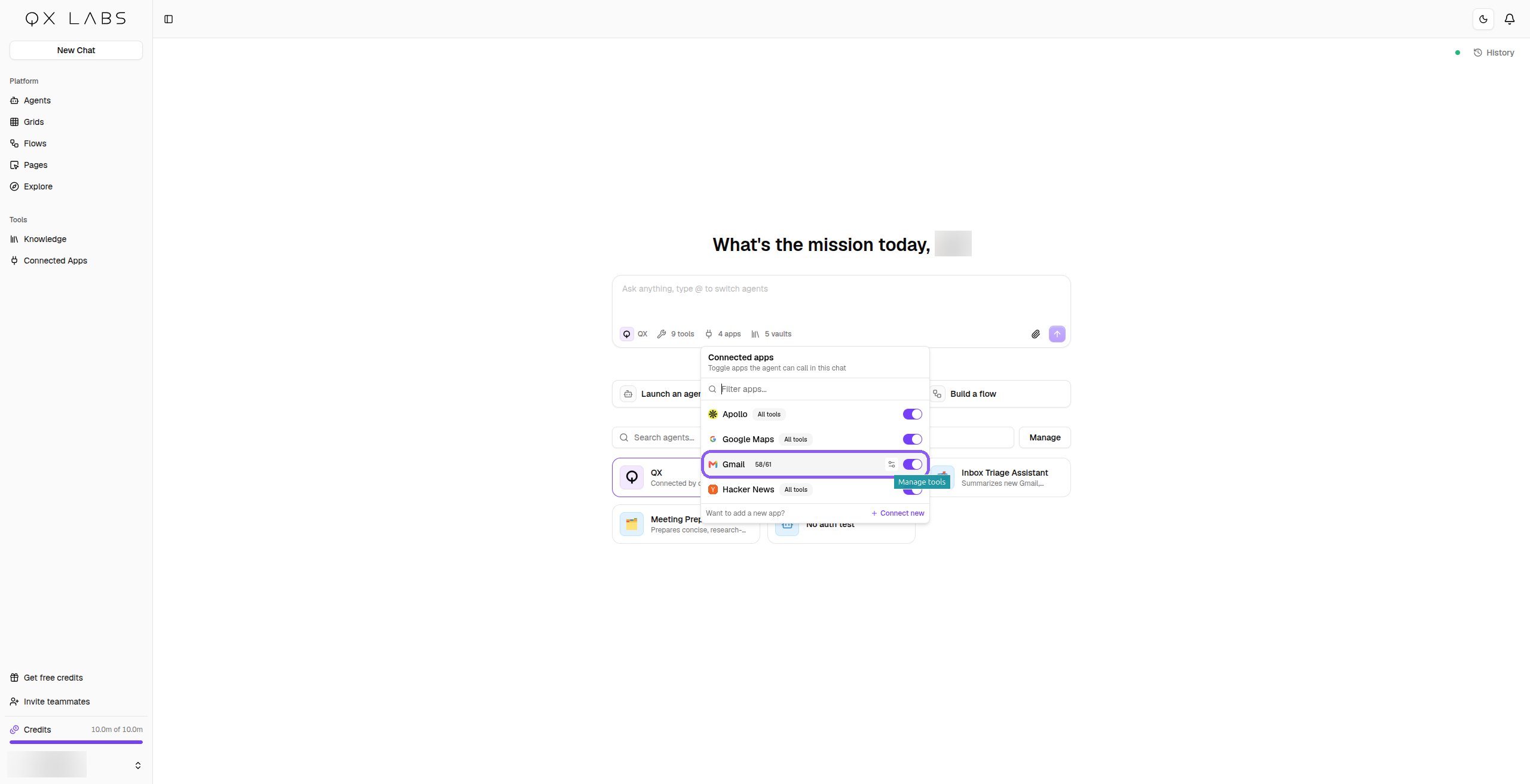
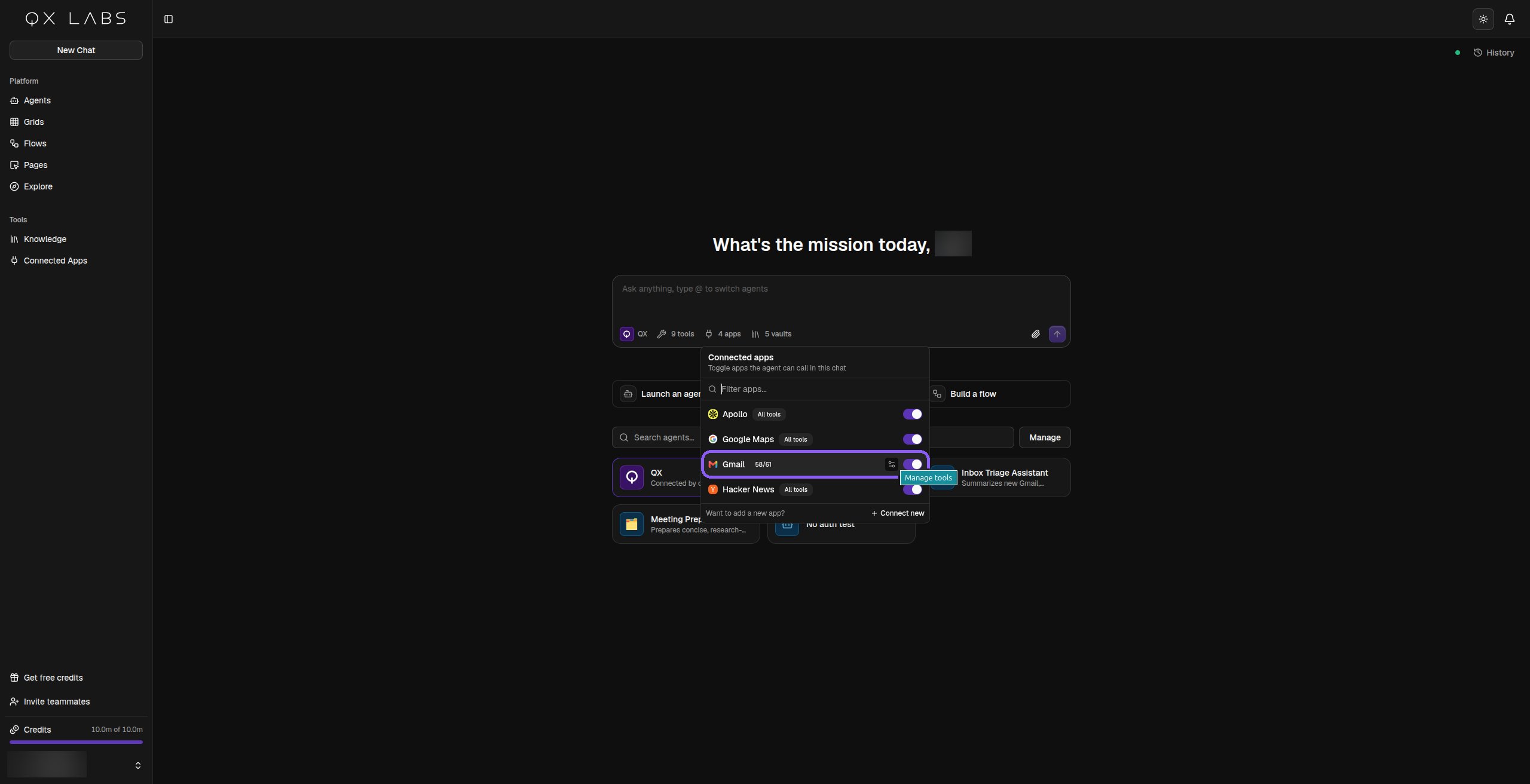
You can also change what an agent may use for one chat, without editing the agent. In the [chat](/agents/chat) composer, open the capabilities, connected apps, or knowledge popover and toggle what you want. Vaults go further than on and off, hover one in the knowledge popover and click **Configure scope** to open the same folder and file picker as the editor. Either way the change applies to that conversation only, and the saved agent stays exactly as it was.
Once saved, the vault's row shows a short summary of what you picked, and that selection is all the agent gets. It searches and cites only the folders and files in scope, the rest of the vault is invisible to it.
## Scope a single conversation
You can also change what an agent may use for one chat, without editing the agent. In the [chat](/agents/chat) composer, open the capabilities, connected apps, or knowledge popover and toggle what you want. Vaults go further than on and off, hover one in the knowledge popover and click **Configure scope** to open the same folder and file picker as the editor. Either way the change applies to that conversation only, and the saved agent stays exactly as it was.
 ## What scoping means in practice
When an agent runs, only the tools you see in its editor exist for it. An agent that can read an inbox but not send from it cannot send, no matter how it is asked, and a vault scoped to one folder keeps every other document out of view. When an app has more than one account connected, the agent acts as one specific account, and you choose which.
Keep scopes minimal. An agent with just the tools its job needs picks the right one more reliably, runs faster, and can't touch anything you didn't intend.
## What scoping means in practice
When an agent runs, only the tools you see in its editor exist for it. An agent that can read an inbox but not send from it cannot send, no matter how it is asked, and a vault scoped to one folder keeps every other document out of view. When an app has more than one account connected, the agent acts as one specific account, and you choose which.
Keep scopes minimal. An agent with just the tools its job needs picks the right one more reliably, runs faster, and can't touch anything you didn't intend.