> ## Documentation Index
> Fetch the complete documentation index at: https://docs.qxlabs.com/llms.txt
> Use this file to discover all available pages before exploring further.
# Build manually
**Nodes** mode gives you the full canvas: drag in the nodes you want, wire them together, fill in their settings, and test them one at a time.
## Add nodes to the canvas
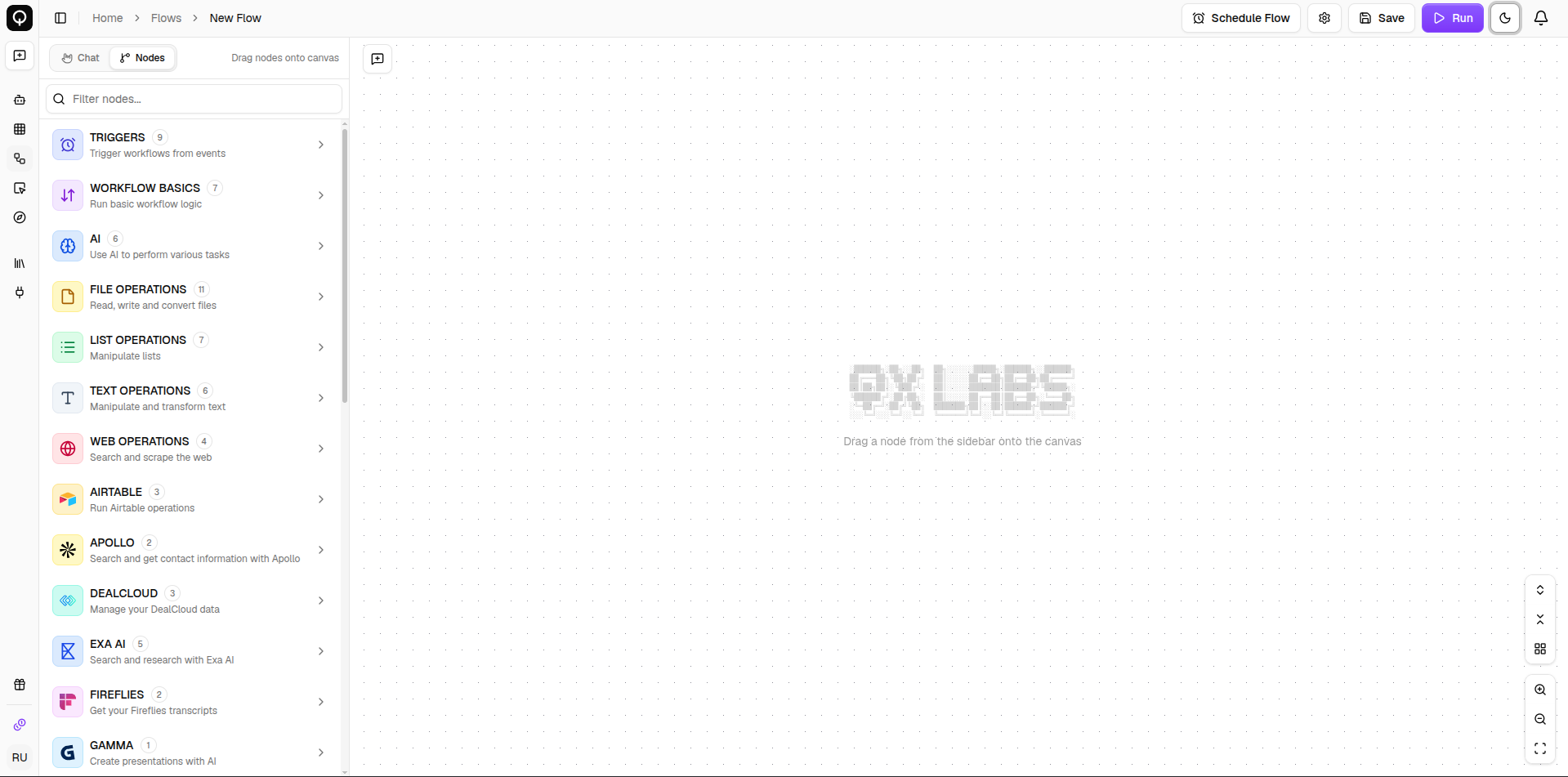
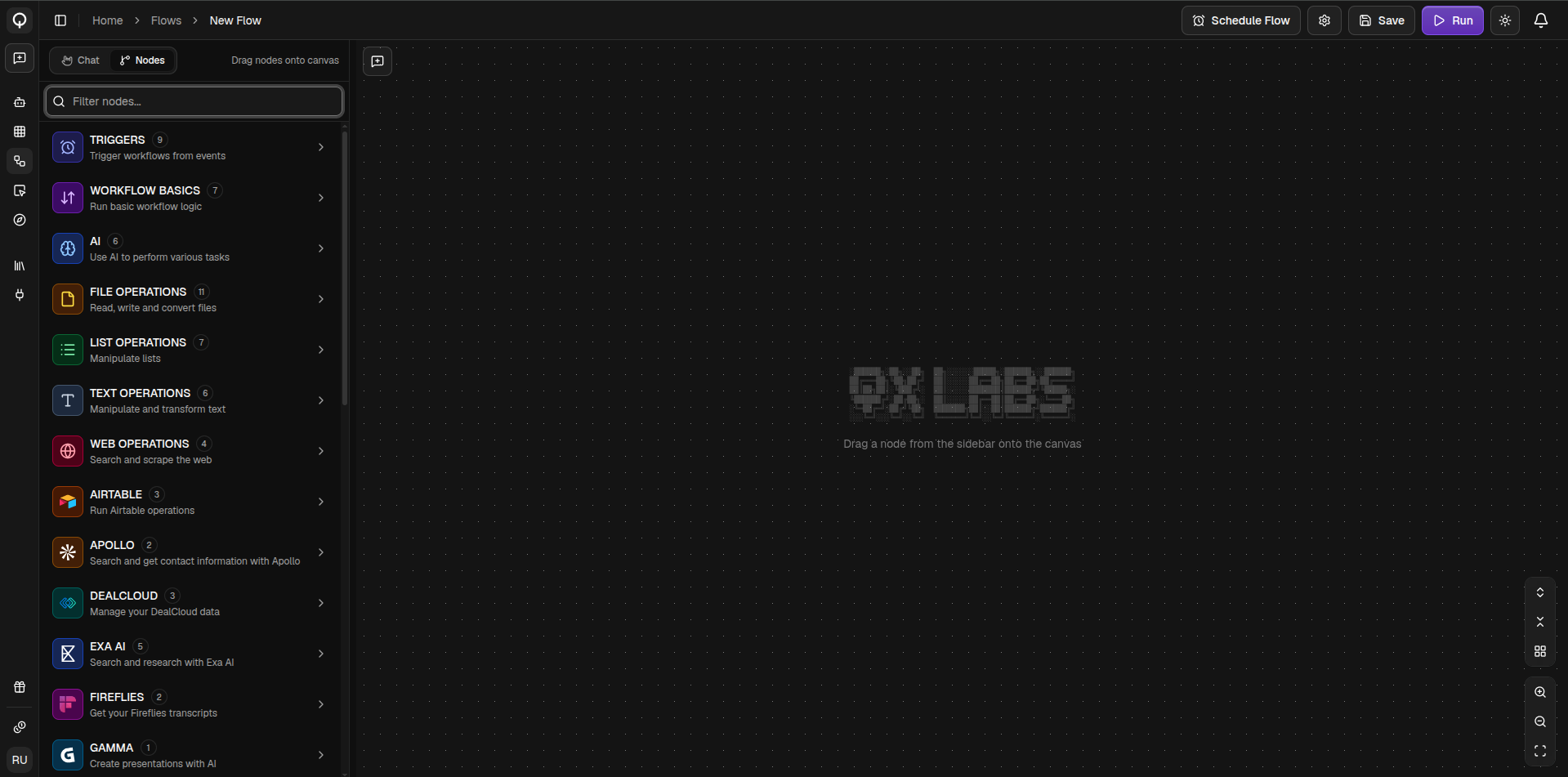
The sidebar lists every node by category. Click a category to see its nodes, or type in the search box to filter across all of them. **Drag** a node from the sidebar onto the canvas to add it, clicking a node in the list does not add it.
 Browse the full catalog of nodes and what each one does.
Drag nodes around to arrange them, or click **Auto-Organize** in the bottom-right controls (**⌘/**) to tidy the whole canvas at once. Those same controls zoom in and out and fit the flow to the screen. To work with several nodes together, shift-drag a box around them or ⌘-click each one, then copy and paste them with **⌘C** and **⌘V**. Select anything and press **Delete** to remove it.
## Connect and set up nodes
Drag from a node's bottom handle to another node's top handle to connect them. One output can feed as many downstream nodes as you like. To remove a connection, click it and press **Delete**.
Node settings live right on the canvas. Fill in the fields you see, and switch on **More Options** for the less common settings. To use a value from an earlier node, hover the node and drag a value from its **Inputs** panel into a field, where it drops in as a colored chip that you can mix with your own text. Some fields offer a dropdown of upstream values instead.
Browse the full catalog of nodes and what each one does.
Drag nodes around to arrange them, or click **Auto-Organize** in the bottom-right controls (**⌘/**) to tidy the whole canvas at once. Those same controls zoom in and out and fit the flow to the screen. To work with several nodes together, shift-drag a box around them or ⌘-click each one, then copy and paste them with **⌘C** and **⌘V**. Select anything and press **Delete** to remove it.
## Connect and set up nodes
Drag from a node's bottom handle to another node's top handle to connect them. One output can feed as many downstream nodes as you like. To remove a connection, click it and press **Delete**.
Node settings live right on the canvas. Fill in the fields you see, and switch on **More Options** for the less common settings. To use a value from an earlier node, hover the node and drag a value from its **Inputs** panel into a field, where it drops in as a colored chip that you can mix with your own text. Some fields offer a dropdown of upstream values instead.
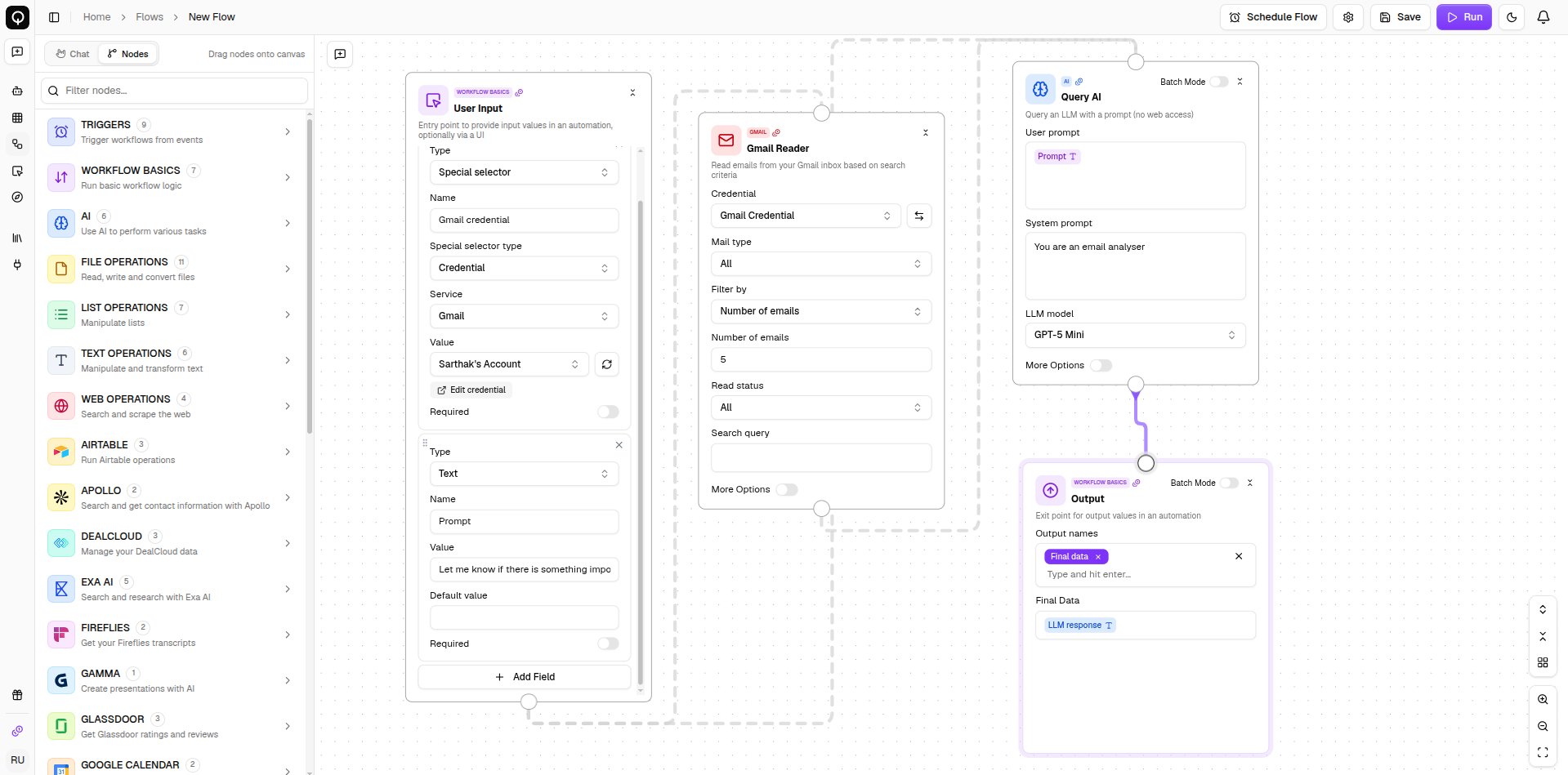
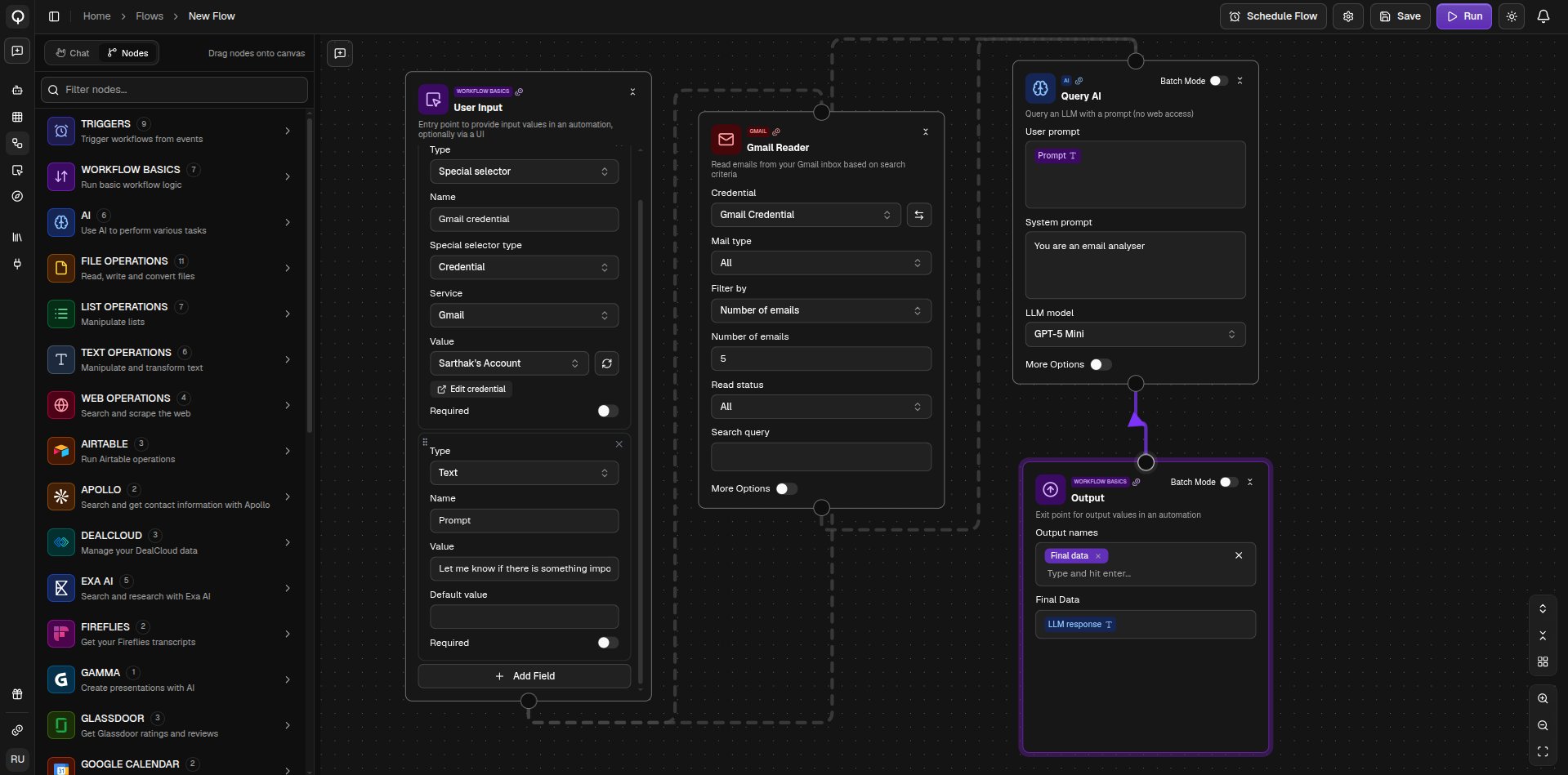 Click a node's name to rename it, or hover a node and click a badge in its **Outputs** panel to rename an output.
To give your flow a simple form instead of the canvas, add a **User Input** node and turn on **Access via user interface**. This creates a web page where anyone can fill in the fields and run the flow, no builder needed. A **View User Interface** button then appears in the top-left of the canvas. See [Flow user interface](/flows/flow-ui).
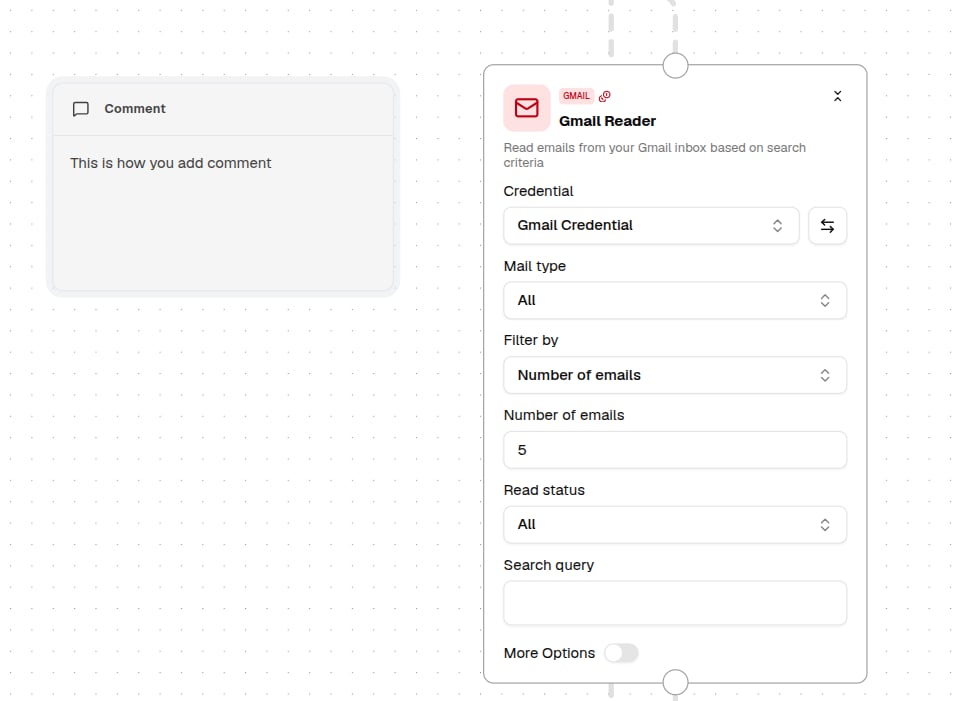
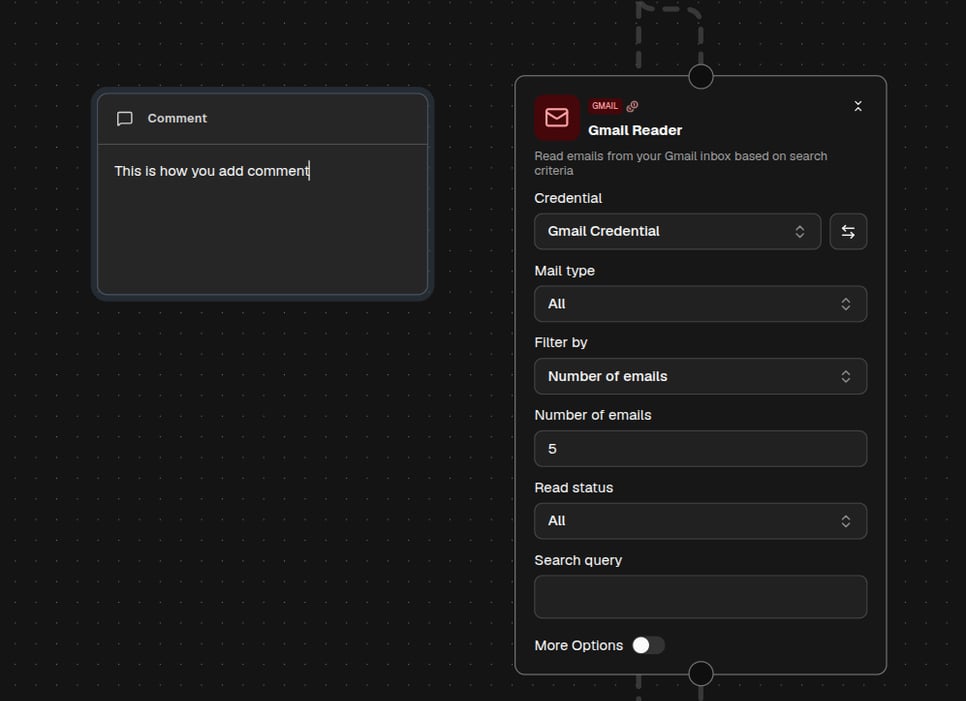
To leave a note for yourself or a teammate, click **Add Comment** in the top-left of the canvas, then click where you want it. Comments are annotations only and do not connect to anything.
Click a node's name to rename it, or hover a node and click a badge in its **Outputs** panel to rename an output.
To give your flow a simple form instead of the canvas, add a **User Input** node and turn on **Access via user interface**. This creates a web page where anyone can fill in the fields and run the flow, no builder needed. A **View User Interface** button then appears in the top-left of the canvas. See [Flow user interface](/flows/flow-ui).
To leave a note for yourself or a teammate, click **Add Comment** in the top-left of the canvas, then click where you want it. Comments are annotations only and do not connect to anything.
 ## Test as you build
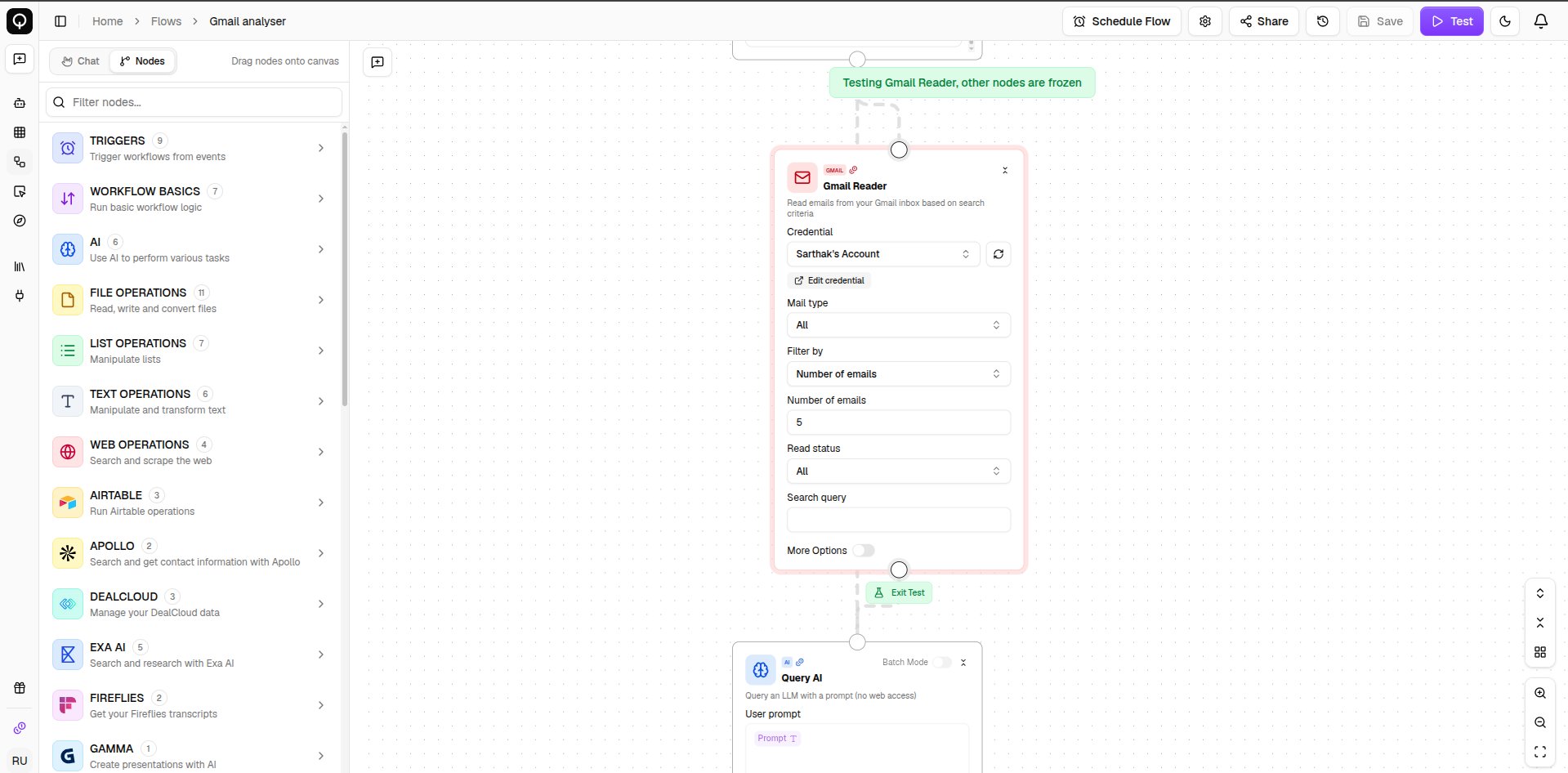
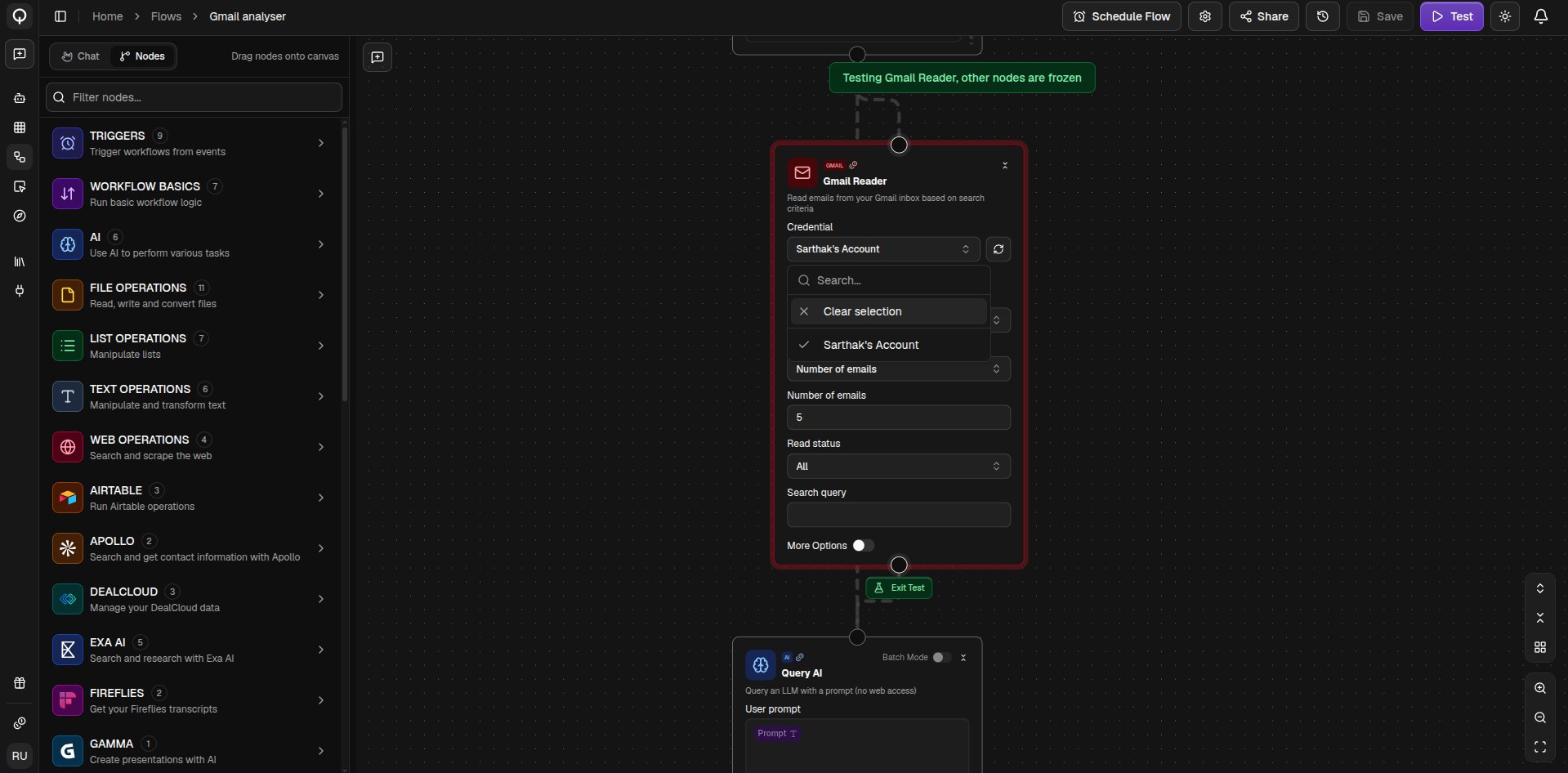
You do not have to run the whole flow to check one piece of it. Hover a node and click **Test Node** to try that node on its own. The rest of the canvas freezes, and the node's fields turn into simple boxes where you type sample values. Click **Test** to run it. Nothing you type during a test is saved, and exiting test mode restores your flow exactly as it was.
## Test as you build
You do not have to run the whole flow to check one piece of it. Hover a node and click **Test Node** to try that node on its own. The rest of the canvas freezes, and the node's fields turn into simple boxes where you type sample values. Click **Test** to run it. Nothing you type during a test is saved, and exiting test mode restores your flow exactly as it was.
 When you want to run everything, click **Run** (**⌘Enter**). After a run, hovering a node also offers **Re-Run From Here**, which reuses the previous run's results and picks up from that node onward, handy when you are iterating on the last step of a long flow. For progress, outputs, and past runs, see [Running and testing](/flows/running-and-testing) and [Run history](/flows/run-history).
If something is wrong, the node turns red with the problem shown above it. Missing [credentials](/connected-apps/overview) stop a run before it starts and name the nodes to fix.
## Save your work
Click **Save** (**⌘S**) to save, which creates a new version each time. **Settings** (**⌘,**) holds the flow's name, description, and status, and **Share** controls who else can see it.
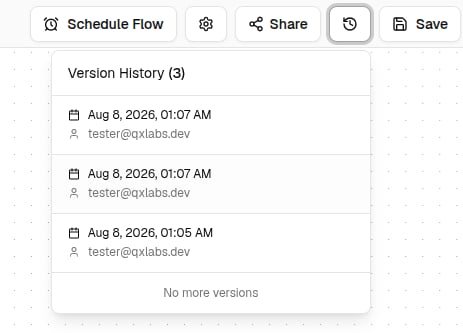
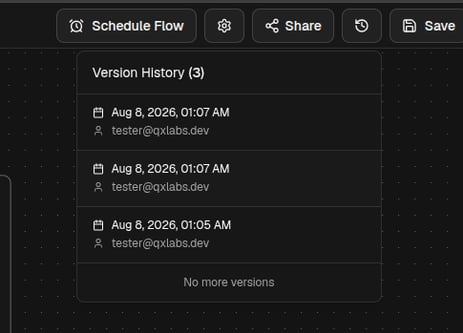
Open **Version History** to browse earlier saves and click one to view it, then use **View Latest Version** to come back. To go back to an older version, open it and save it, which makes it the current version.
When you want to run everything, click **Run** (**⌘Enter**). After a run, hovering a node also offers **Re-Run From Here**, which reuses the previous run's results and picks up from that node onward, handy when you are iterating on the last step of a long flow. For progress, outputs, and past runs, see [Running and testing](/flows/running-and-testing) and [Run history](/flows/run-history).
If something is wrong, the node turns red with the problem shown above it. Missing [credentials](/connected-apps/overview) stop a run before it starts and name the nodes to fix.
## Save your work
Click **Save** (**⌘S**) to save, which creates a new version each time. **Settings** (**⌘,**) holds the flow's name, description, and status, and **Share** controls who else can see it.
Open **Version History** to browse earlier saves and click one to view it, then use **View Latest Version** to come back. To go back to an older version, open it and save it, which makes it the current version.