> ## Documentation Index
> Fetch the complete documentation index at: https://docs.qxlabs.com/llms.txt
> Use this file to discover all available pages before exploring further.
# Schedules and triggers
A flow can run itself, either on a schedule or whenever something happens in a connected app.
## Schedules
Save the flow and set its status to **Active** in **Settings**, then click **Schedule Flow** in the toolbar. Pick how often it should run, along with the time and your timezone. **Schedule at** shows what you picked in plain language.
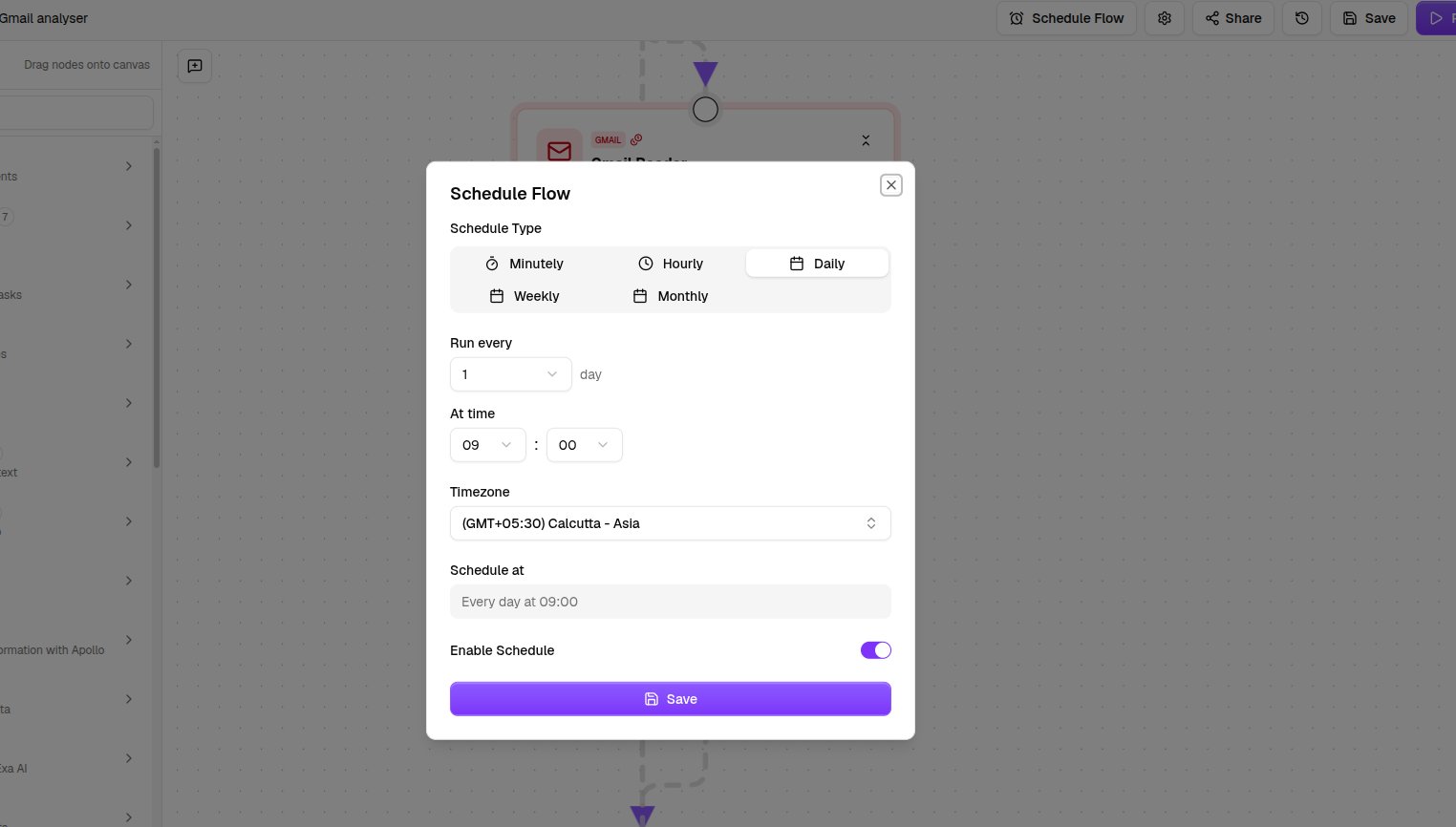
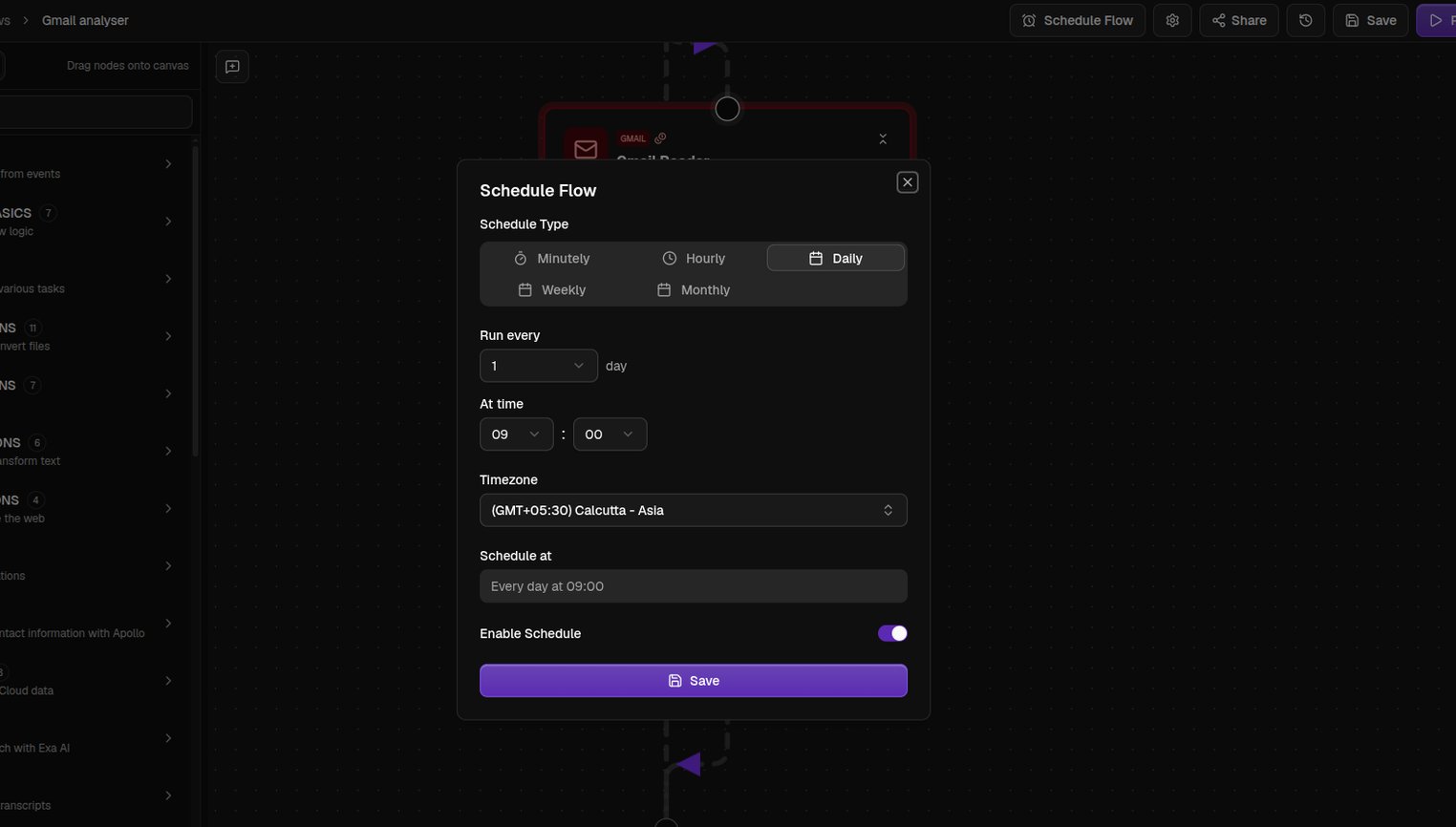 **Enable Schedule** turns it on. The toolbar button then reads **Scheduled**, and reopening it lets you edit or delete the schedule. Switching a flow back to **Draft** stops its scheduled runs.
## Triggers
A trigger runs your flow when something happens in an app, like an email arriving or a row being added to a spreadsheet. Drag one in from the **Triggers** category, give it a credential, and tell it what to watch. A flow can have one trigger, and it must be the first node. See [Triggers](/flows/nodes/triggers) for what each one listens for.
**Enable Schedule** turns it on. The toolbar button then reads **Scheduled**, and reopening it lets you edit or delete the schedule. Switching a flow back to **Draft** stops its scheduled runs.
## Triggers
A trigger runs your flow when something happens in an app, like an email arriving or a row being added to a spreadsheet. Drag one in from the **Triggers** category, give it a credential, and tell it what to watch. A flow can have one trigger, and it must be the first node. See [Triggers](/flows/nodes/triggers) for what each one listens for.
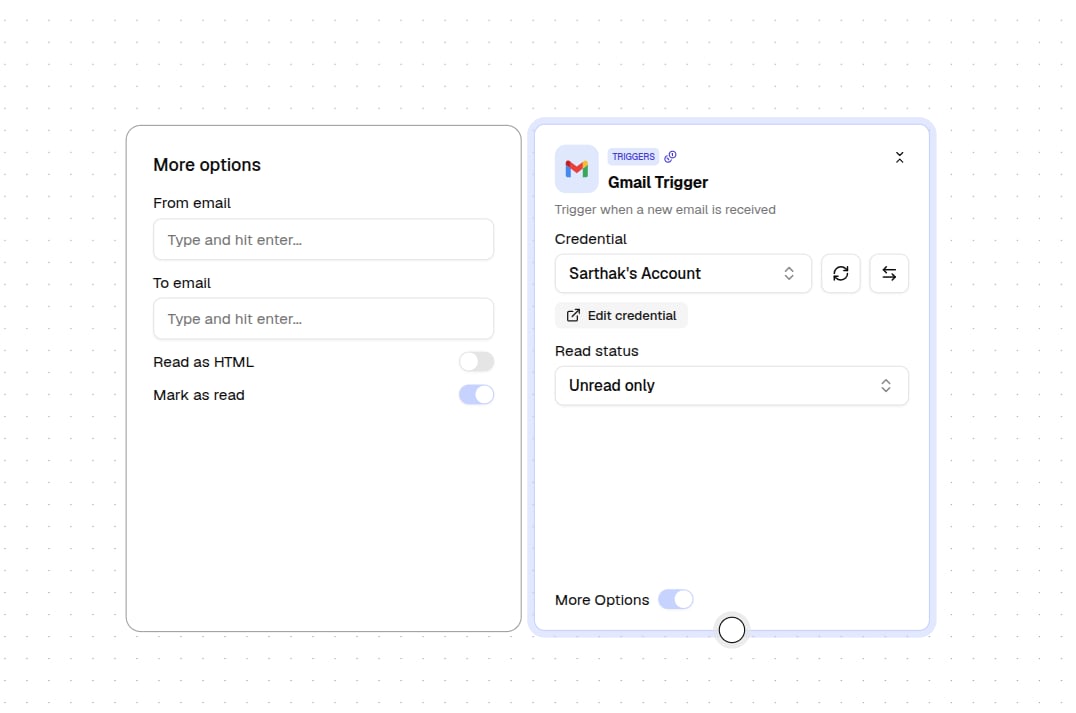
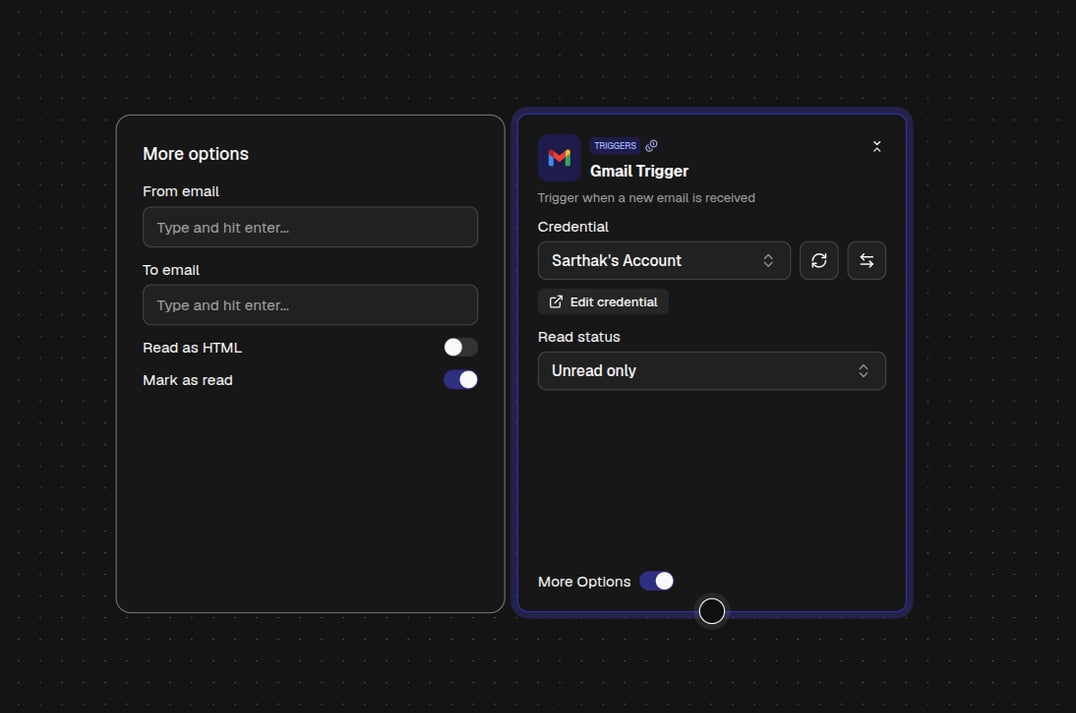 To go further, the [Custom Code Trigger](/flows/nodes/custom-code-trigger) can listen to events from any of the 1,000+ apps in the catalog. Pick the service, the event, and your account, then ask the builder in **Chat** mode to write the code that pulls out the values you need.
Triggers only listen while the flow is **Active**, so set the status in **Settings** and save. The trigger's icon then appears in the **Triggers** column of your Flows list, which confirms it is live. A new trigger starts watching from that moment, so it will not pick up anything that happened before.
To go further, the [Custom Code Trigger](/flows/nodes/custom-code-trigger) can listen to events from any of the 1,000+ apps in the catalog. Pick the service, the event, and your account, then ask the builder in **Chat** mode to write the code that pulls out the values you need.
Triggers only listen while the flow is **Active**, so set the status in **Settings** and save. The trigger's icon then appears in the **Triggers** column of your Flows list, which confirms it is live. A new trigger starts watching from that moment, so it will not pick up anything that happened before.