> ## Documentation Index
> Fetch the complete documentation index at: https://docs.qxlabs.com/llms.txt
> Use this file to discover all available pages before exploring further.
# Build with AI
Every grid opens with a **Chat** tab in the sidebar, where you can describe what you want and have the grid built for you. It adds the columns, picks the right processor for each one, and fills in your rows.
## Describe what you want
Create a blank grid and the **Chat** tab is already open, with a few example prompts to get you going. Describe what you want to end up with:
> Find me 50 GTM engineers at mid-sized B2B companies in the UK, with each one's company website and team size. Add a column drafting a personalized outreach to each.
Columns and rows appear on the grid as it works, so you can watch it take shape. Its steps show up in the chat, and you can open any of them to see what it did.
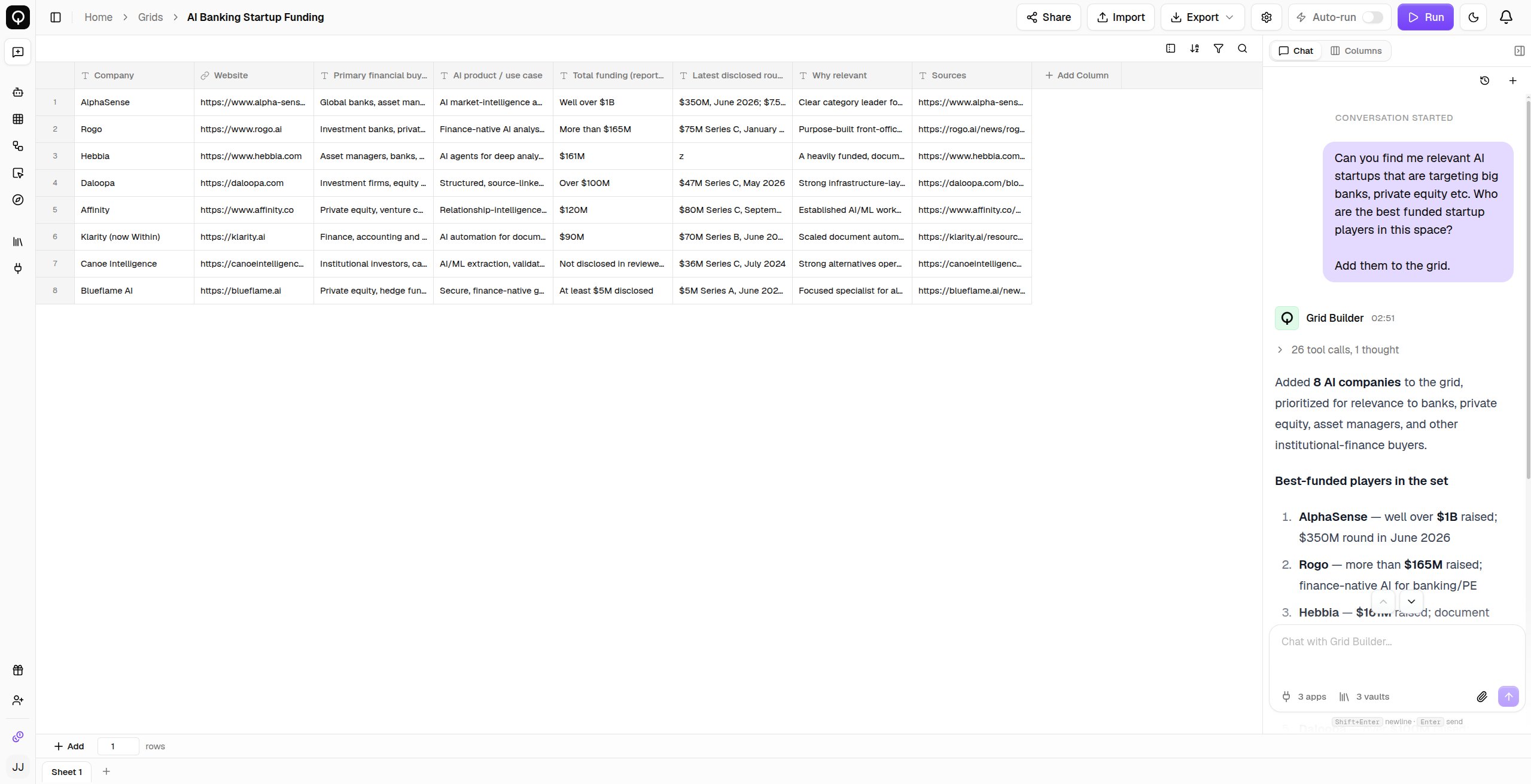
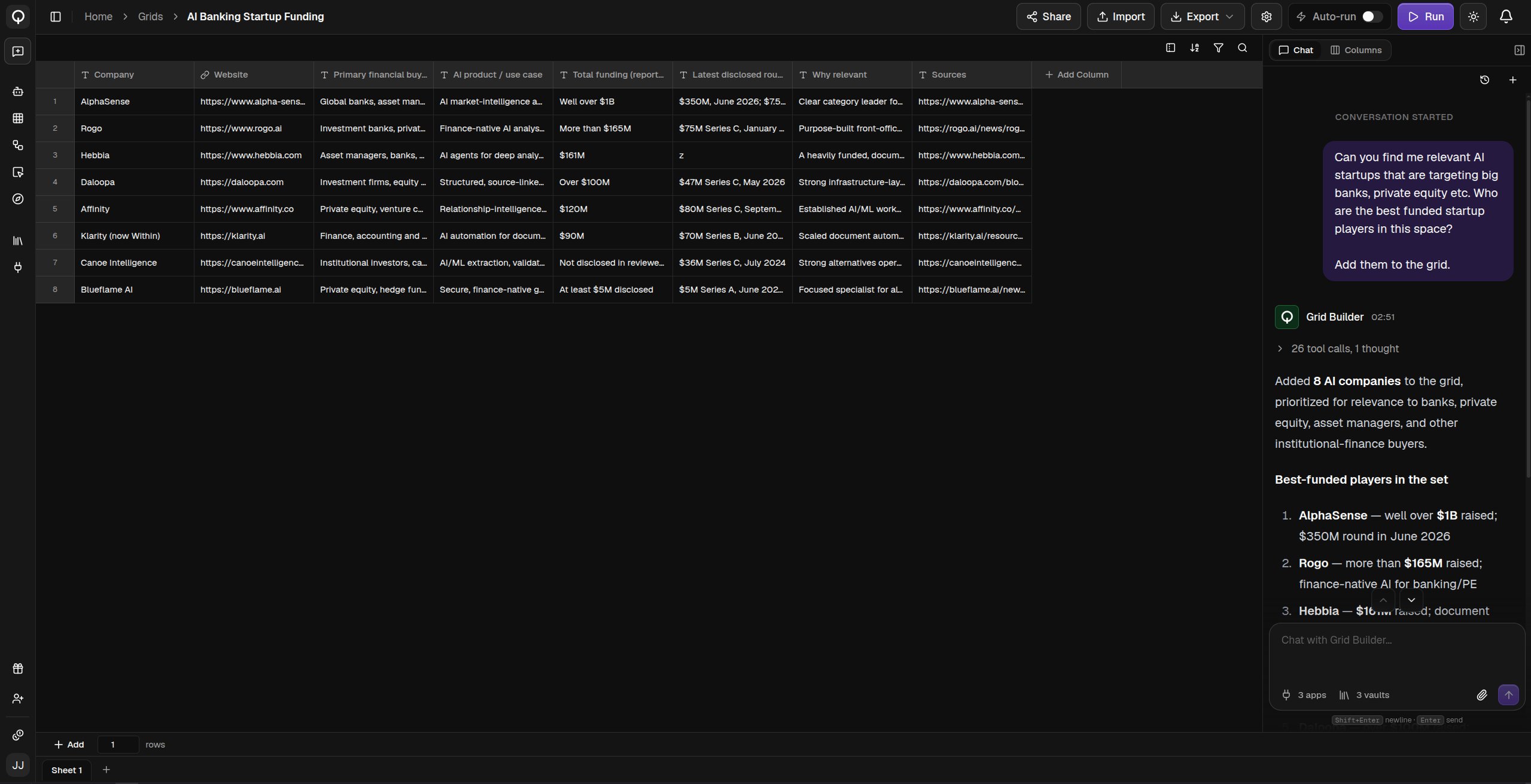 It brings your [connected apps](/connected-apps/overview), [knowledge vaults](/agents/apps-and-knowledge), and workspace with it, so it can research the web, pull rows out of your CRM or inbox, or work from a file you attach. Use the apps and knowledge controls in the message box to change what it may reach for this conversation.
## Answer its questions
* A **question** card appears when it needs a decision from you. Click an option or type your own answer.
* A **selection** card appears when it needs one of your existing resources, like an app credential or a knowledge vault. Pick one, or connect a new one.
Switch to the **Columns** tab any time to adjust a column yourself, then come back to **Chat** and keep going. Past conversations for this grid are saved: open the history icon at the top of the panel to revisit one or start fresh.
## Running
The builder never runs your grid on its own. It shows you what it wants to run and the expected credits, and you approve or reject it. It tests a row or two first, then offers to run the rest. See [Running cells](/grids/running-cells).
The chat works on the sheet you have open, and an untitled grid is named from your first message.
You can also build a grid without opening it. Ask the QX agent in [chat](/agents/chat) and it builds one for you, then hands you a link. See [Capabilities](/agents/capabilities).
It brings your [connected apps](/connected-apps/overview), [knowledge vaults](/agents/apps-and-knowledge), and workspace with it, so it can research the web, pull rows out of your CRM or inbox, or work from a file you attach. Use the apps and knowledge controls in the message box to change what it may reach for this conversation.
## Answer its questions
* A **question** card appears when it needs a decision from you. Click an option or type your own answer.
* A **selection** card appears when it needs one of your existing resources, like an app credential or a knowledge vault. Pick one, or connect a new one.
Switch to the **Columns** tab any time to adjust a column yourself, then come back to **Chat** and keep going. Past conversations for this grid are saved: open the history icon at the top of the panel to revisit one or start fresh.
## Running
The builder never runs your grid on its own. It shows you what it wants to run and the expected credits, and you approve or reject it. It tests a row or two first, then offers to run the rest. See [Running cells](/grids/running-cells).
The chat works on the sheet you have open, and an untitled grid is named from your first message.
You can also build a grid without opening it. Ask the QX agent in [chat](/agents/chat) and it builds one for you, then hands you a link. See [Capabilities](/agents/capabilities).