

Always allow, Needs approval, or Blocked
Every action an agent can take in an app has one of three settings.
These are only defaults. You can change any of them for a whole app or a single action, and give one agent its own settings, see Scopes and permissions. QX’s built-in apps, like DataForSEO, run without asking.
Approve or deny an action
When an action needs approval, the agent pauses and a request appears above the message box. It names the action and shows the agent’s reason for running it. Click Inputs to see exactly what it will send.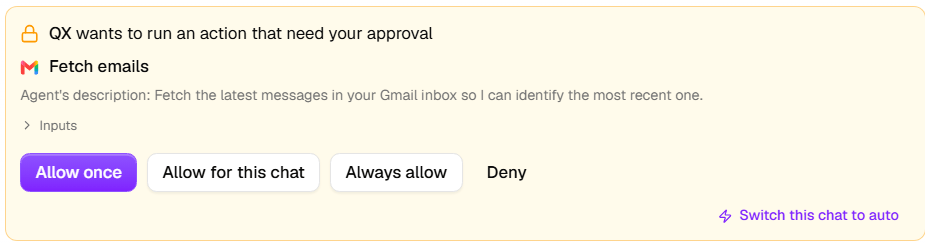
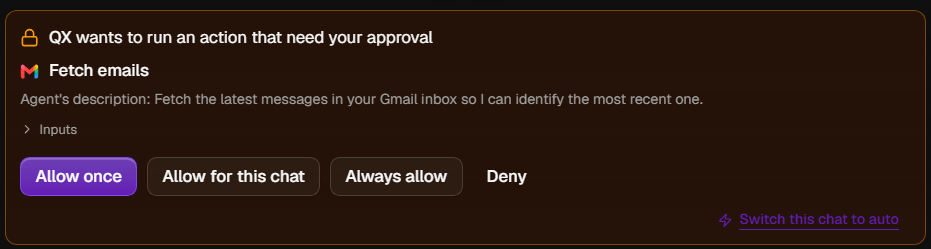
Gmail here is set to ask before reading emails
Approving runs exactly the action shown, with the inputs shown. To undo Always allow, change the action back in its app’s permissions.
When several actions wait
An agent sometimes asks for more than one action at once. Each one gets its own buttons, so you can allow one and deny another.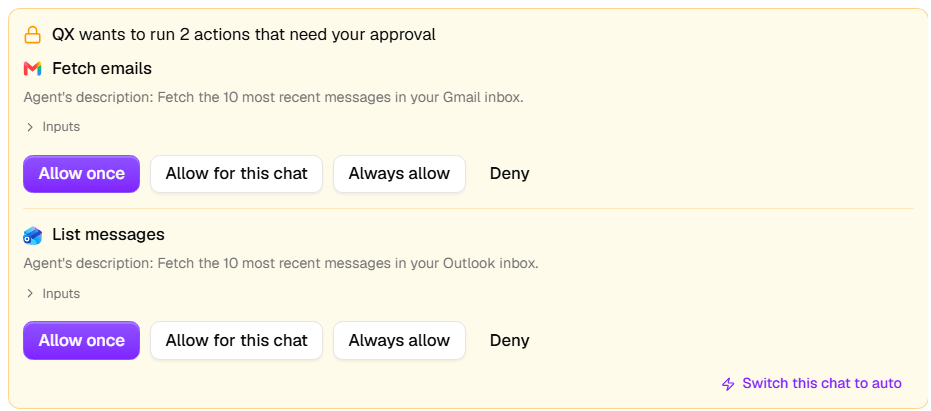
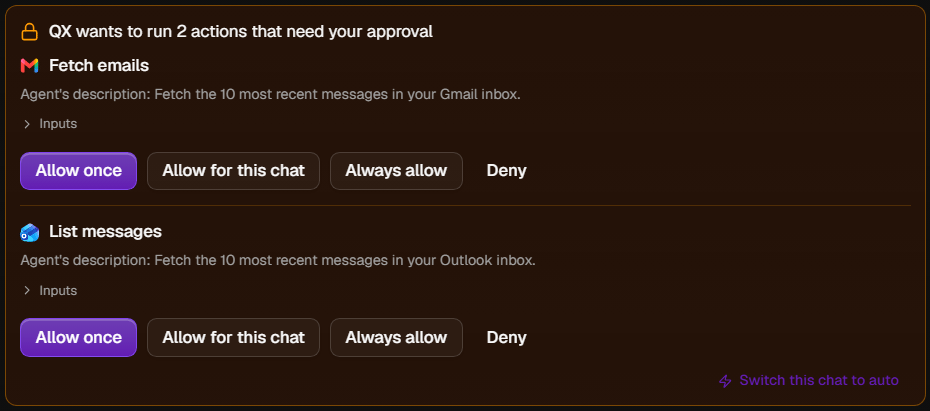
If you send a message instead
You don’t have to answer a request. If you send a new message while actions are waiting, none of them run, not even the ones you already allowed. Their tool calls show Not run, and the agent works from your new message, so ask again if you still want the action done. Typing “yes” doesn’t count as approval, the agent asks again with a new request. In a shared Slack thread or Teams group chat, a new message from anyone in the conversation closes the request.Auto
Turn on Auto in the message box and the agent stops asking in that chat. Actions that need approval run straight away, and Blocked actions still never run. Auto stays on for that chat until you click it again, and Switch this chat to auto on a request does the same.

!auto to it, see Commands.
When the agent asks
Whether an agent can ask depends on where it runs.
Blocked actions never run, wherever the agent runs.
Approvals on other channels
On Slack, Teams, and WhatsApp, requests arrive as buttons right in the conversation.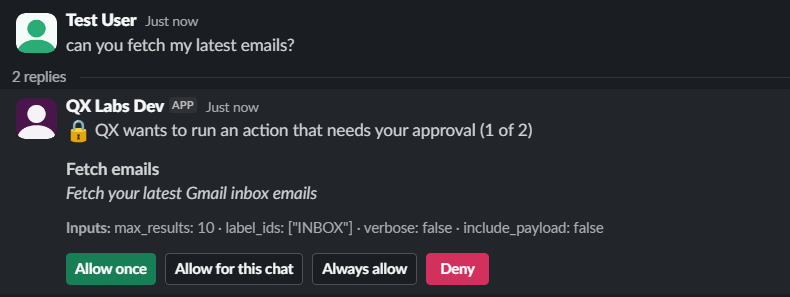
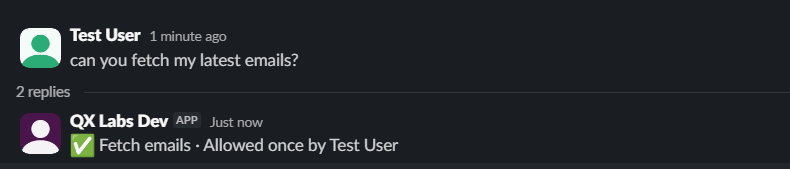
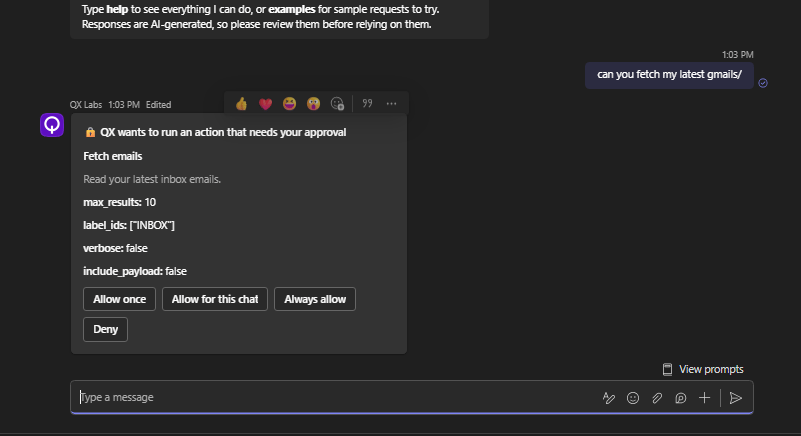
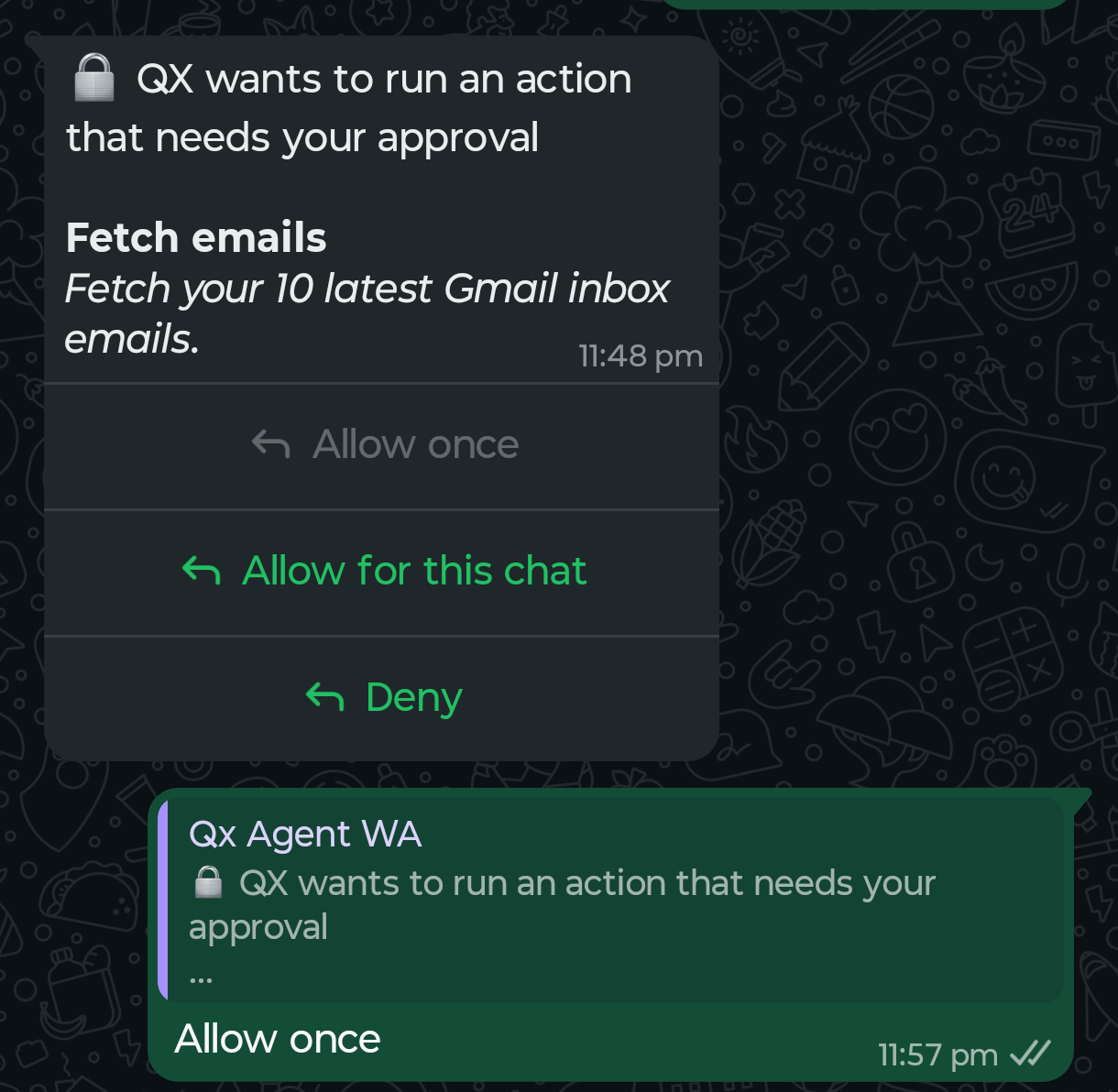
In a shared Slack thread or Teams group chat, Allow for this chat applies to everyone talking to the agent in that conversation.
Scheduled tasks, flows, and grids
Scheduled tasks, and agents that run inside a flow or grid through Run an Agent, work with nobody there to answer. When one reaches an action that needs approval, it skips that action, carries on with the rest, and tells you in its result what it skipped. To let an action run unattended, set it to Always allow:- For one of your own agents, set it in that agent’s Connected apps section, see Scopes and permissions. Only that agent stops asking.
- For QX, set it in the app’s Permissions on Connected Apps. QX then stops asking for that action in every chat too.