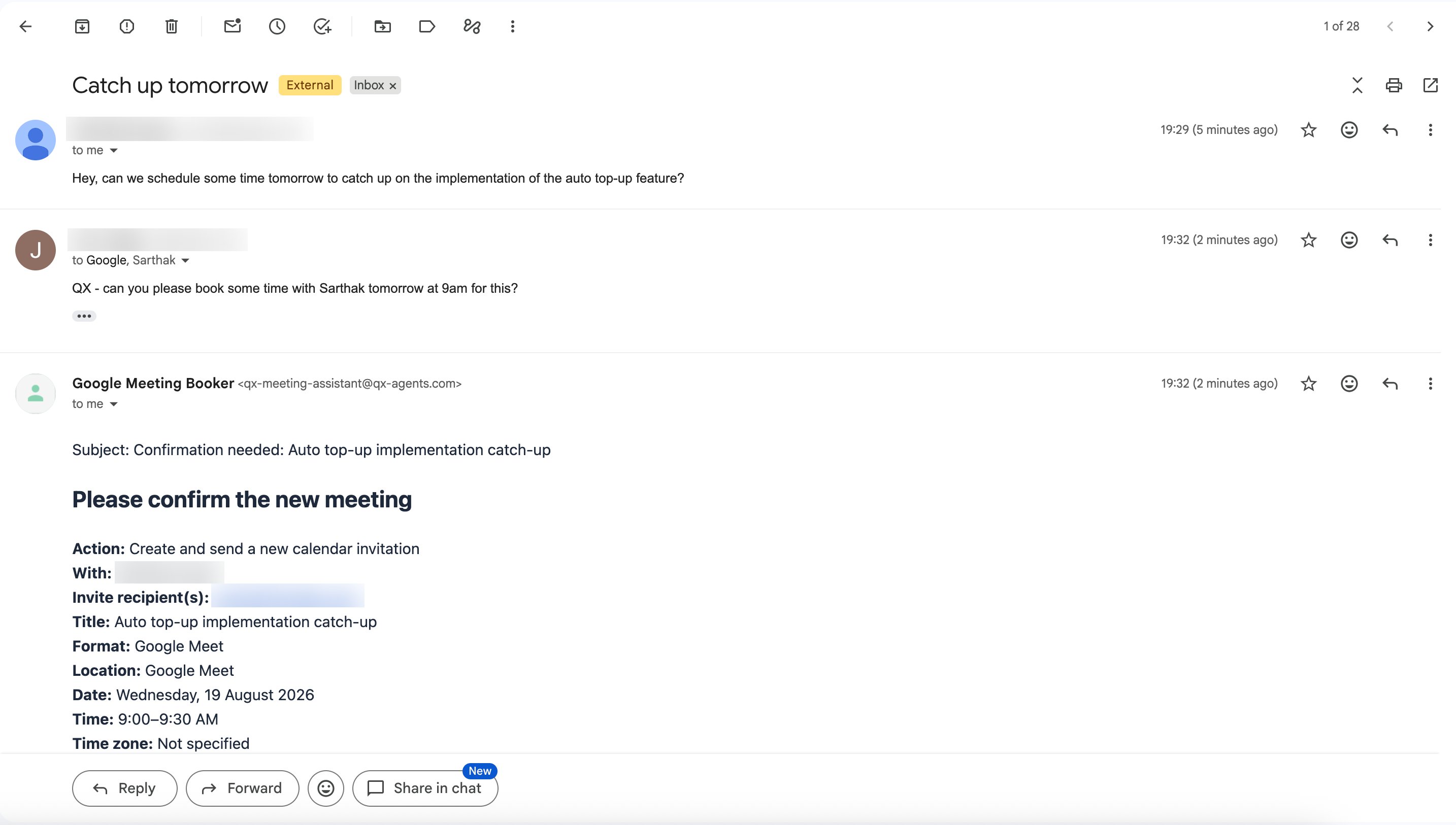
Chat and build through other channels
Connect a channel once for your organization under Settings → Agent Chat Channels, then turn it on for the agent in its Communication section. On Slack, WhatsApp, and email you can chat with your own custom agents too, not just QX.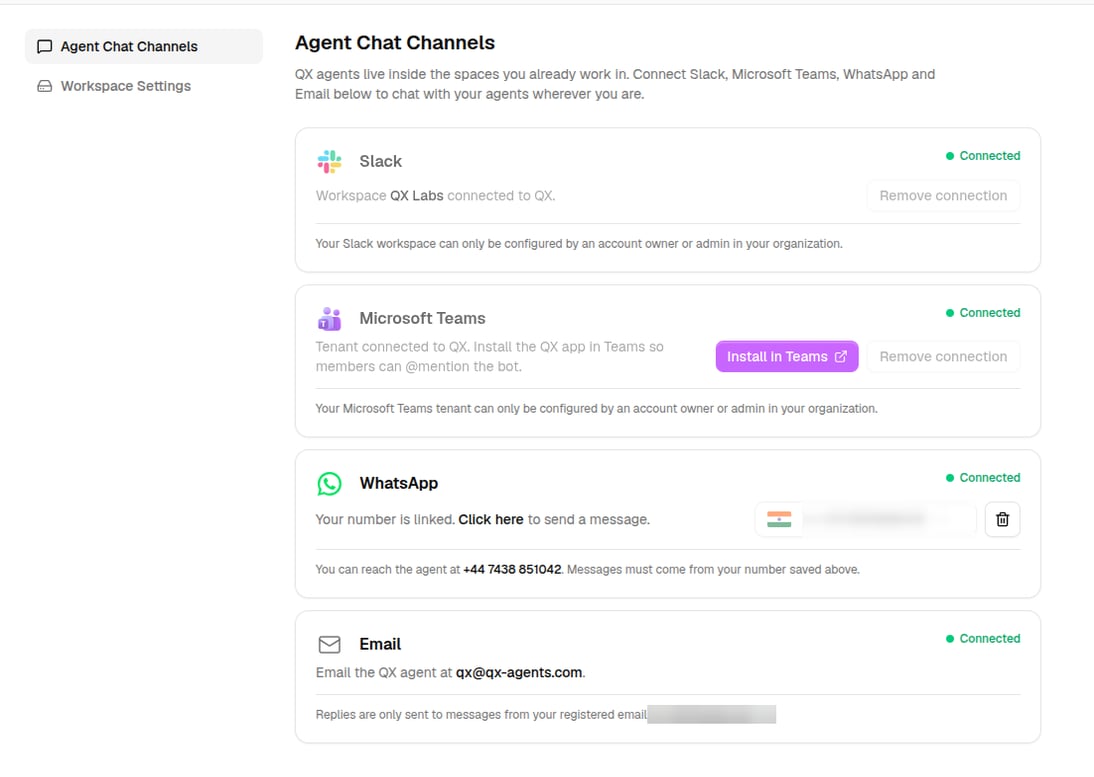
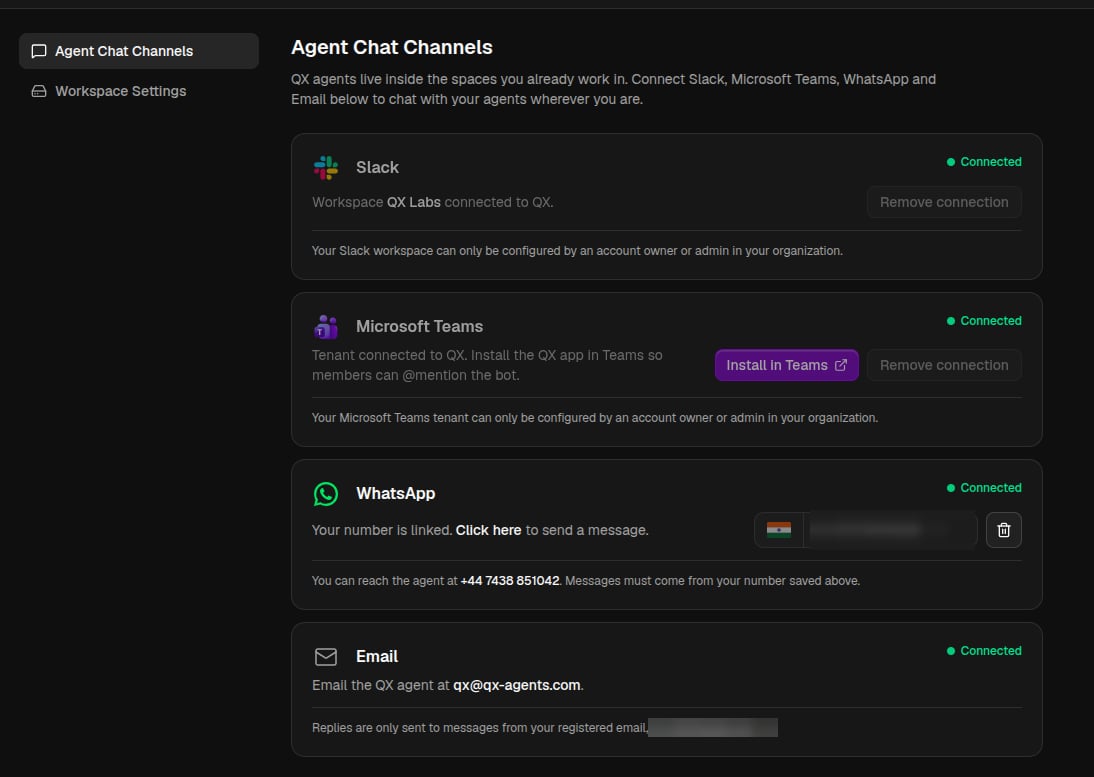
When an action needs your approval, Slack, Teams, and WhatsApp show the request with buttons right in the conversation. Email doesn’t ask, actions run straight away. Commands like
!fast work on every channel too.
Slack
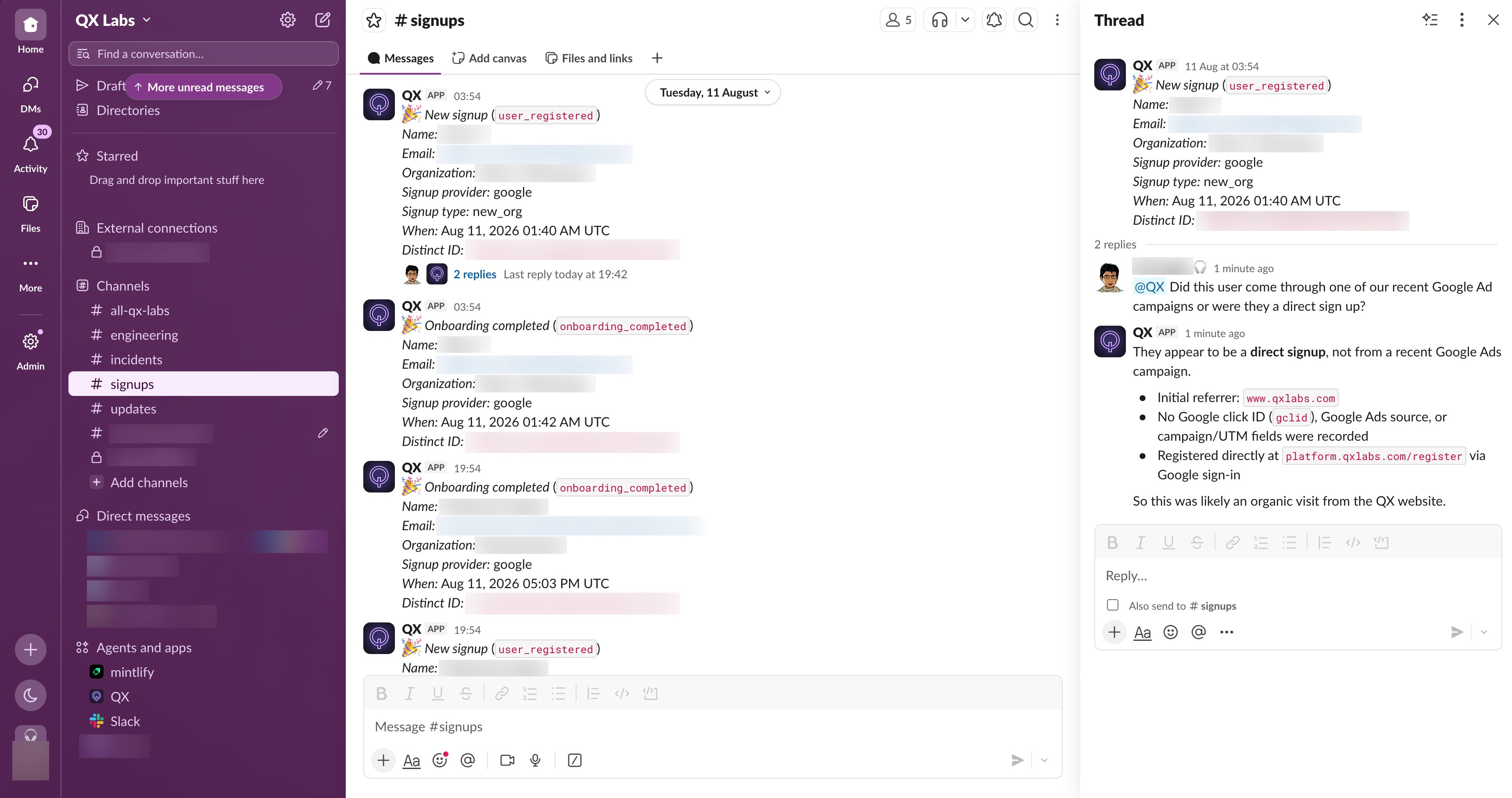
- Connect: install the QX Slack app into your workspace via Settings → Agent Chat Channels. This is done once for the organization, and QX is ready to message right away.
- Turn it on: to chat with a custom agent other than QX, open that agent’s Communication section, choose Enable Slack bot, and follow the steps to set it up.
- Chat: message the bot directly, or mention it in a channel with @. Reply in the thread to continue the conversation, and your teammates can talk to it there too.
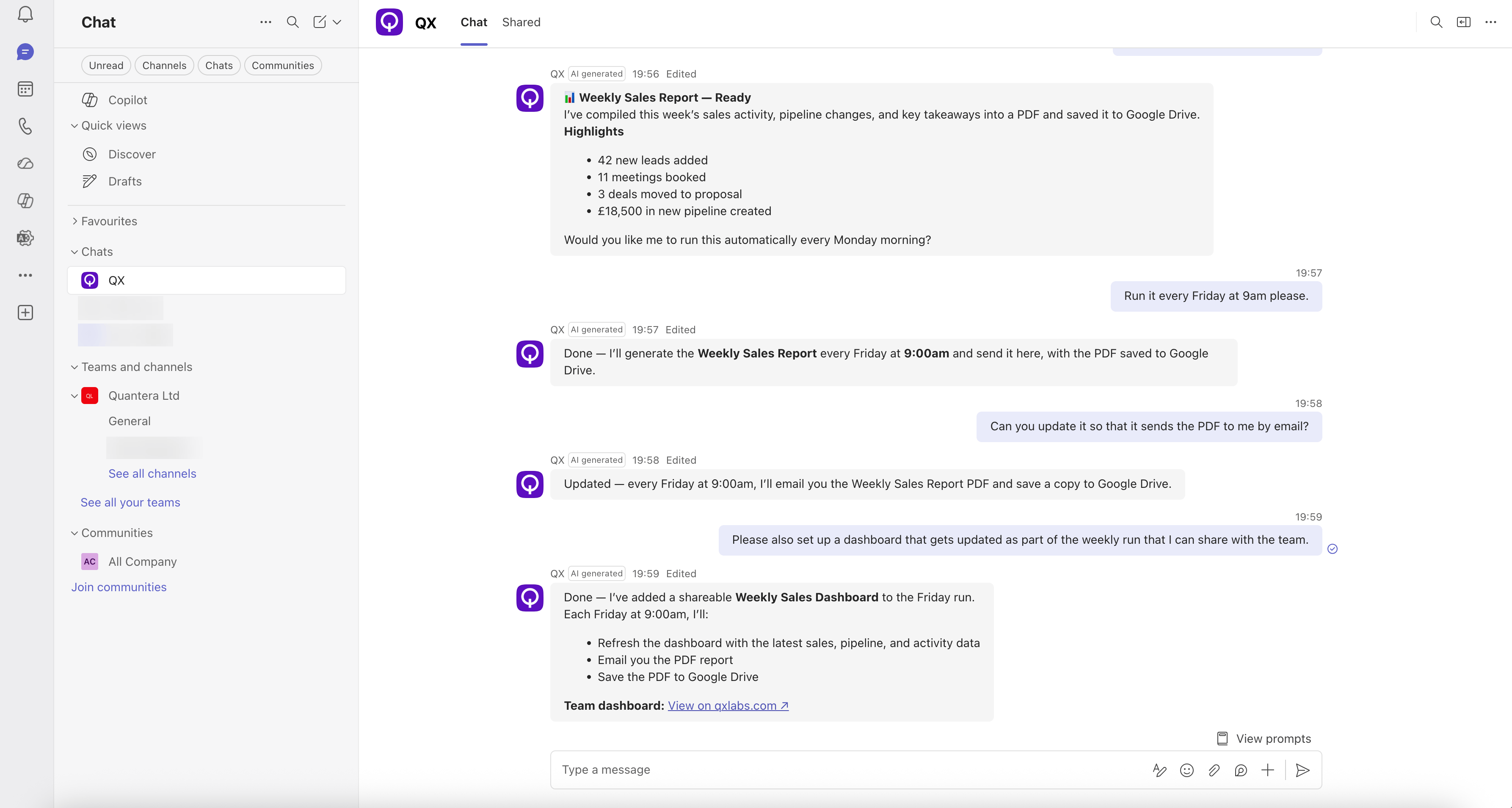
Microsoft Teams
- Connect: install the QX Teams app from Settings → Agent Chat Channels.
- Chat: message the bot inside Teams, or mention it in a channel with @ and it replies in the thread.
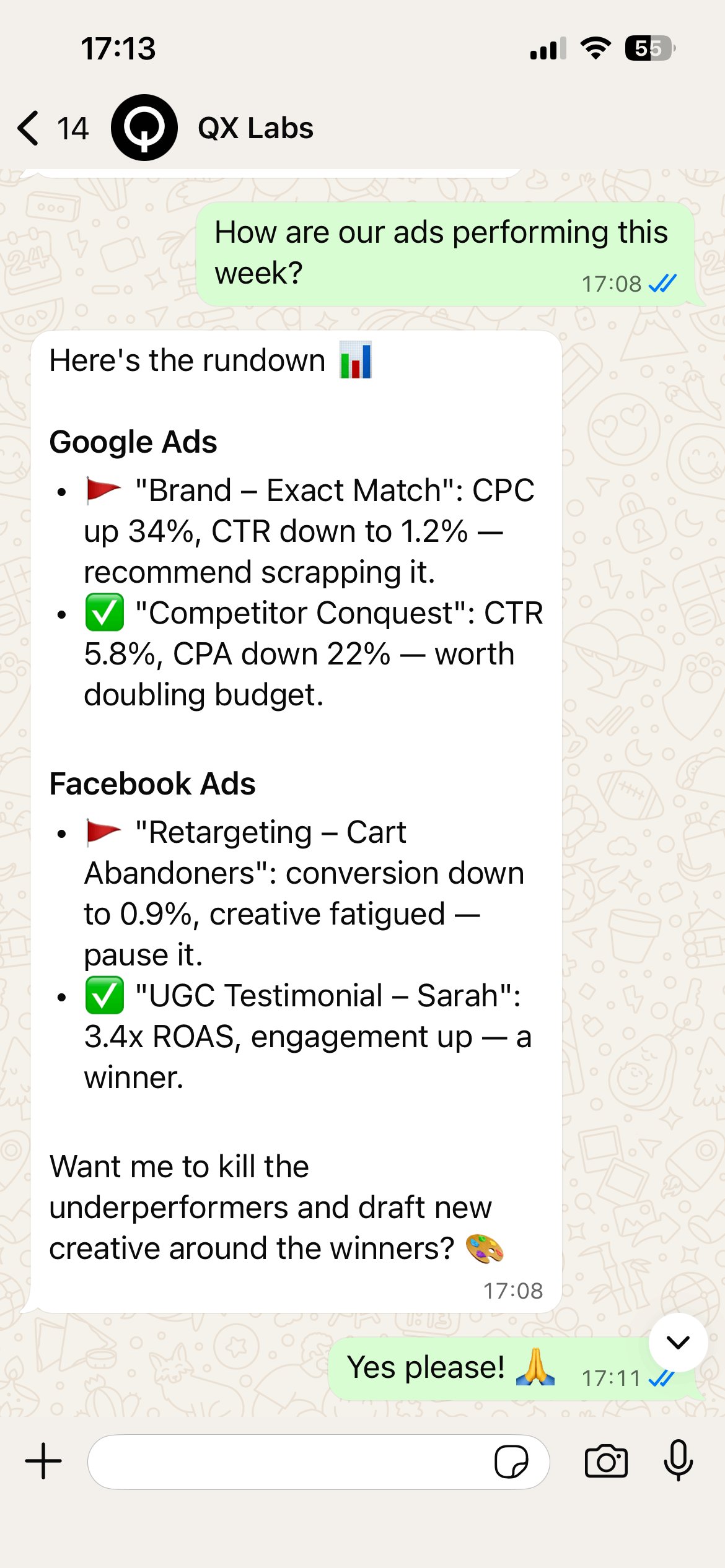
- Connect: save and validate your phone number in Settings → Agent Chat Channels (or your Account settings).
- Turn it on: enable WhatsApp for the agent in its Communication section.
- Chat: message the QX WhatsApp number. The agent replies only to the number you saved.
- Connect: every organization gets agent email on the QX agent domain automatically.
- Turn it on: enable email for the agent and choose its alias (e.g.
research@…). - Chat: email the agent a task and it replies in the thread. It responds only to your registered email address.