

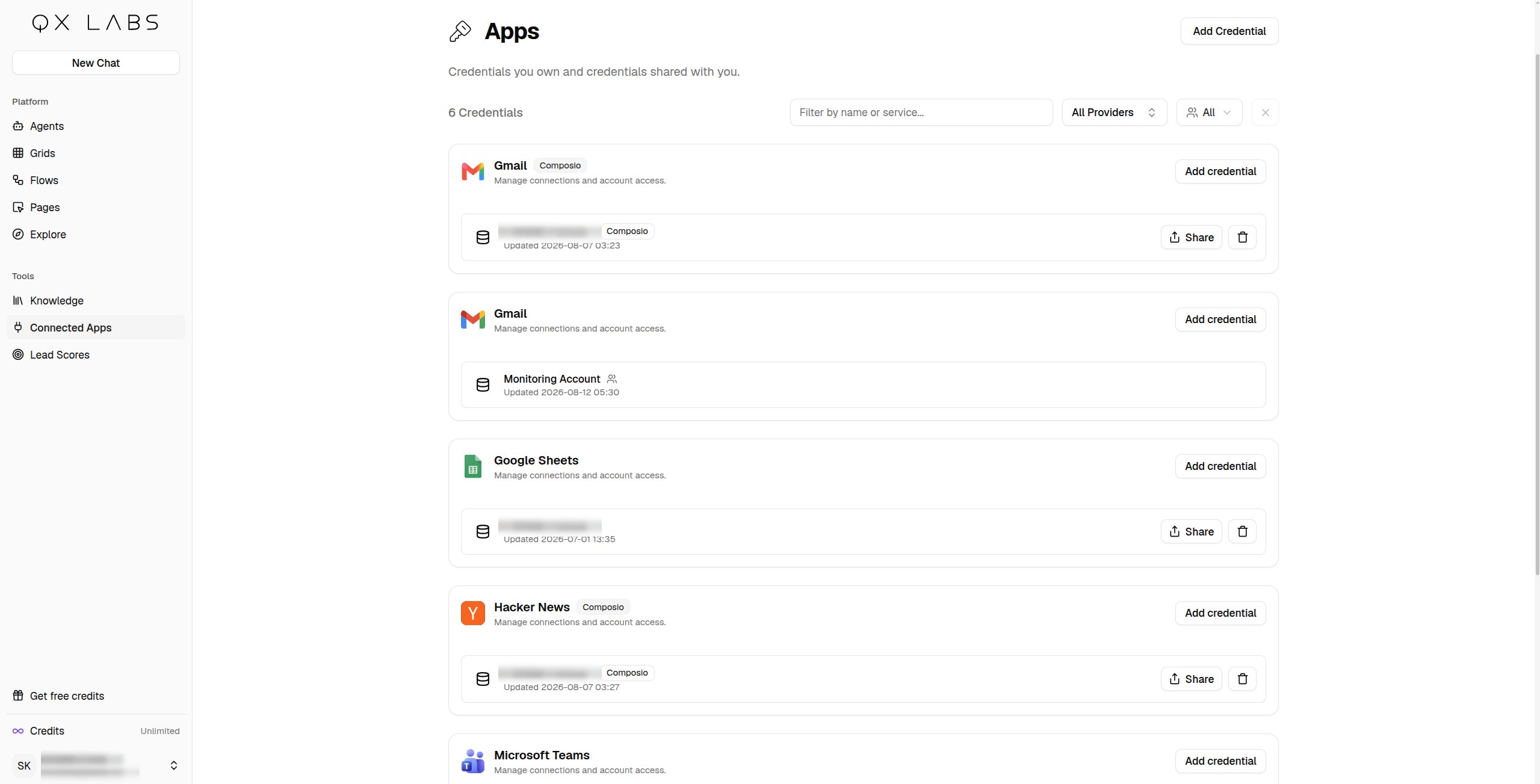
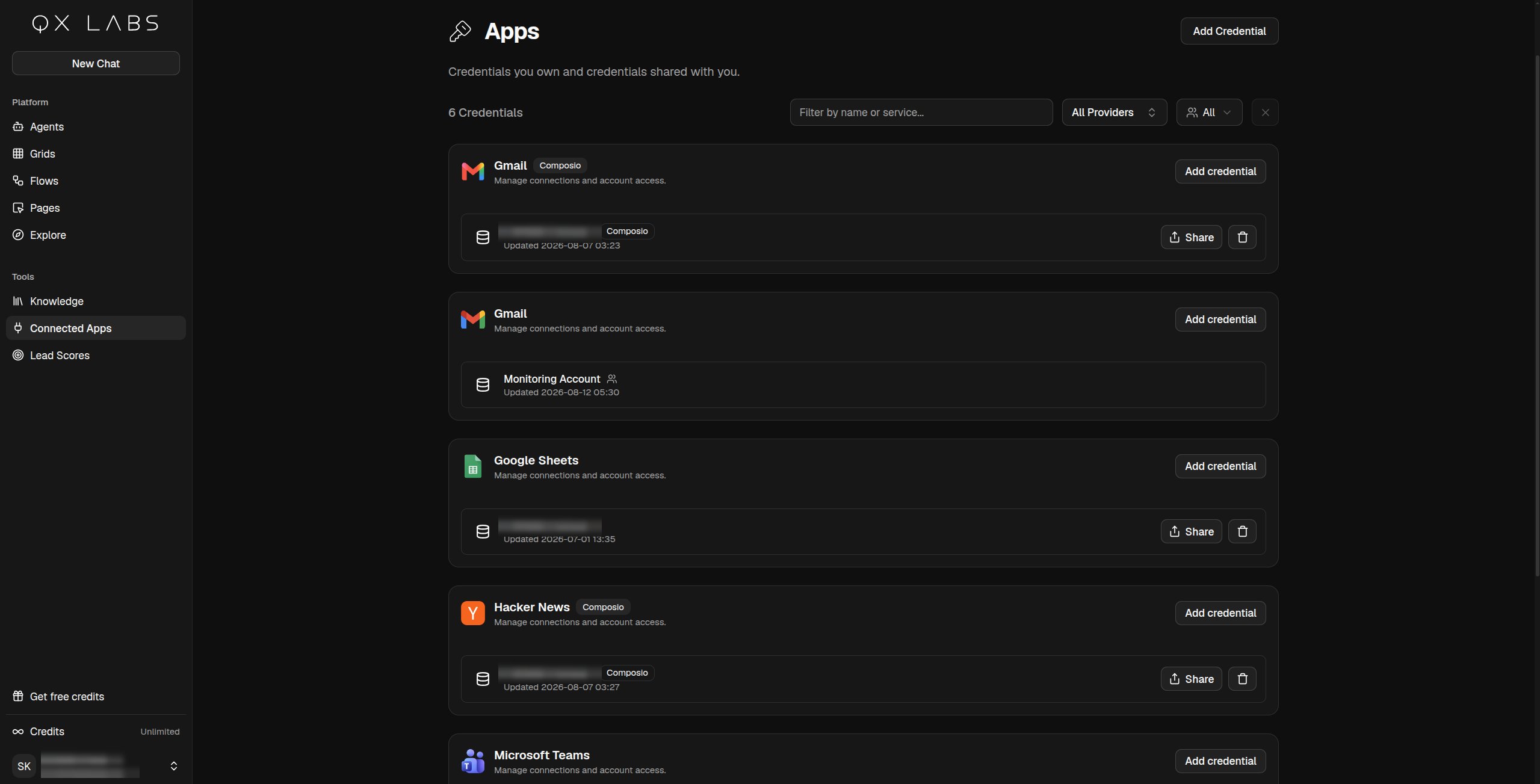
Connect an app
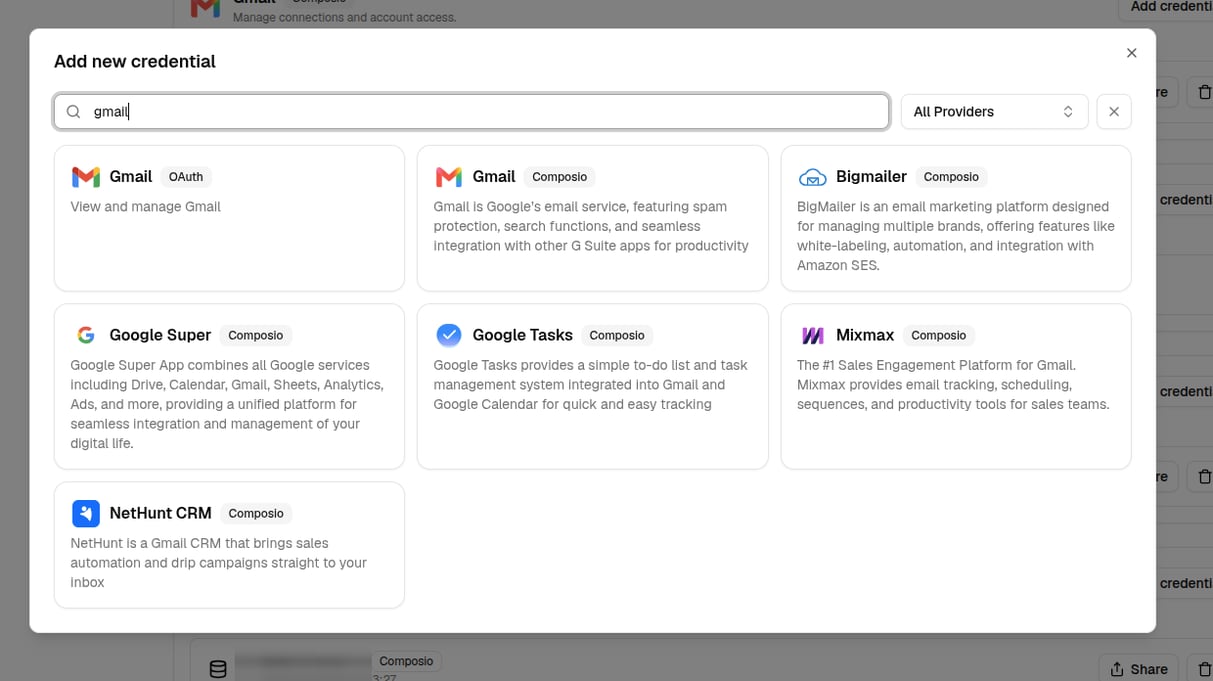
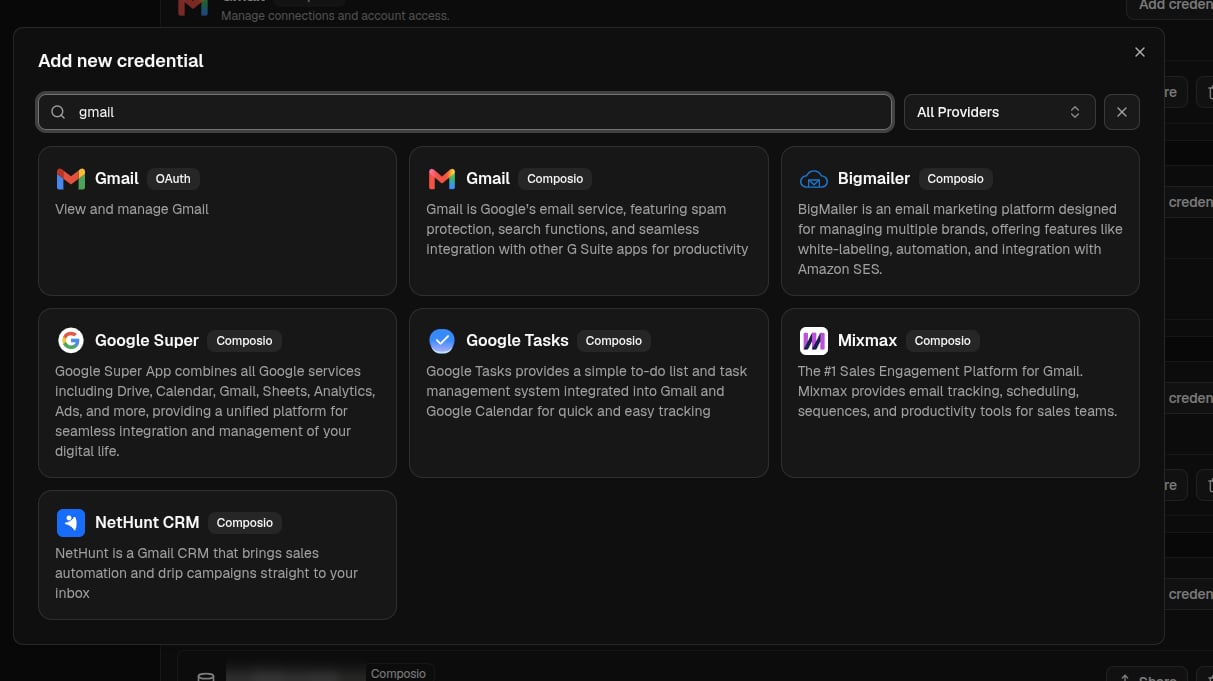
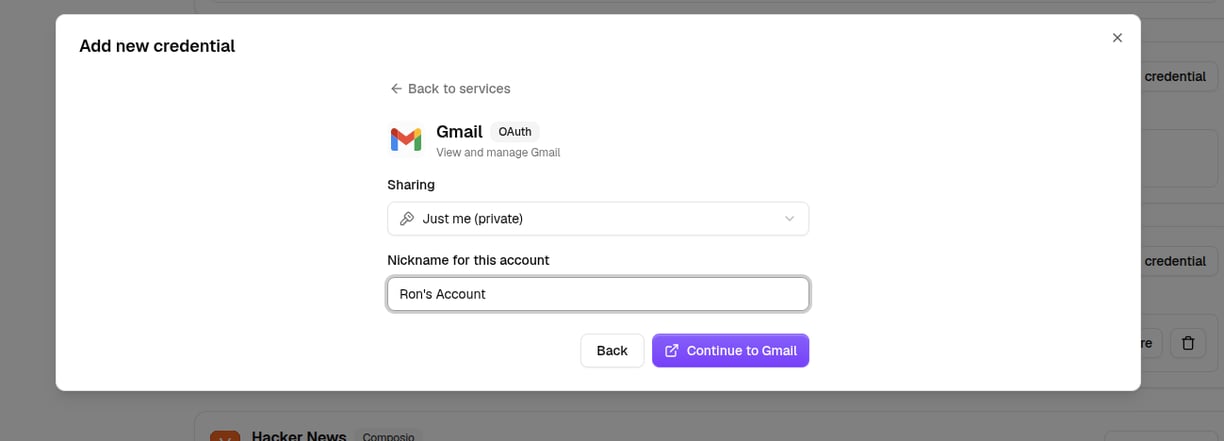
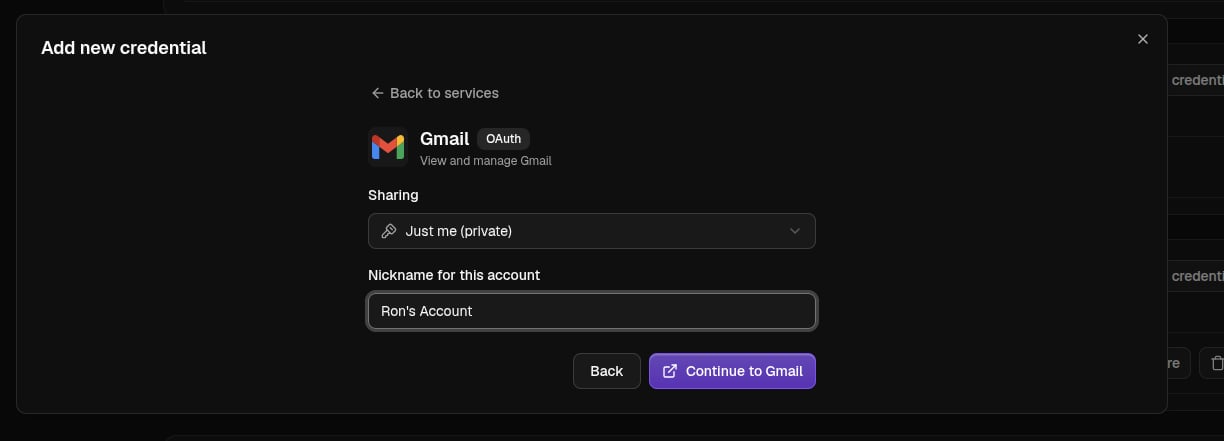
Click Connect App and search for the app. Give the connection a name, choose who can use it, and connect. How that last step works depends on the app:- Most apps sign in with OAuth. Click Continue, approve access in the tab that opens, and you’re done.
- Some apps use an API Key instead. Copy the key from the provider’s account settings, paste it into the form, and save. A few ask for extra details, like a host URL.
1,000+ apps
QX offers more than 1,000 app integrations, from HubSpot and Linear to Attio and beyond.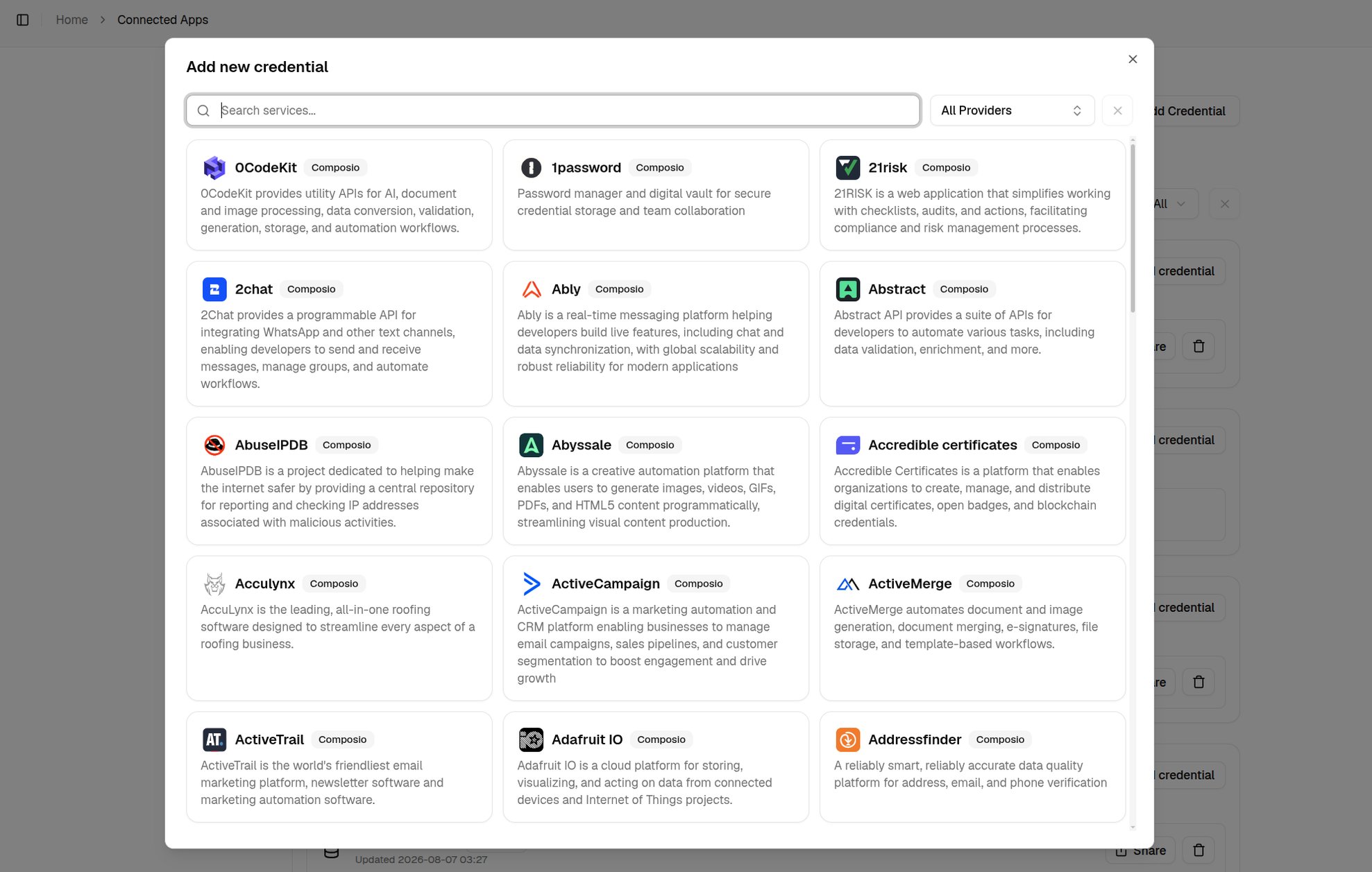
Sharing
Every credential has a Sharing setting: Just me (private), My organisation, or Specific people. You choose it when you connect the app and can change it any time from the Share button on the credential’s row. Sharing lets teammates use the connection in their own agents, flows, and grids, but only the owner can change its sharing or delete it.Permissions
Click Permissions on a connection’s row to choose what agents may do with it, which actions run without asking, which wait for your approval, and which are blocked. Only the owner can change them, and anyone the connection is shared with can open them to see what’s set. See Scopes and permissions for the steps.Manage your connections
The page lists your credentials grouped by app, along with any shared with you. Connections made with an API key have an Edit button for updating the key. Before a credential is deleted, QX shows you everything that depends on it, such as flows that would stop or agents that would lose tools, so you know the impact before you confirm.Slack, Microsoft Teams, WhatsApp, and email are set up from Settings, not here. See Communication channels.