Plans
Every plan includes Spaces, full-stack web apps that agents build and deploy for you. Free includes one Space; Pro and Enterprise have no limit. On Free, a Space unused for 30 days is deleted, with email warnings first.
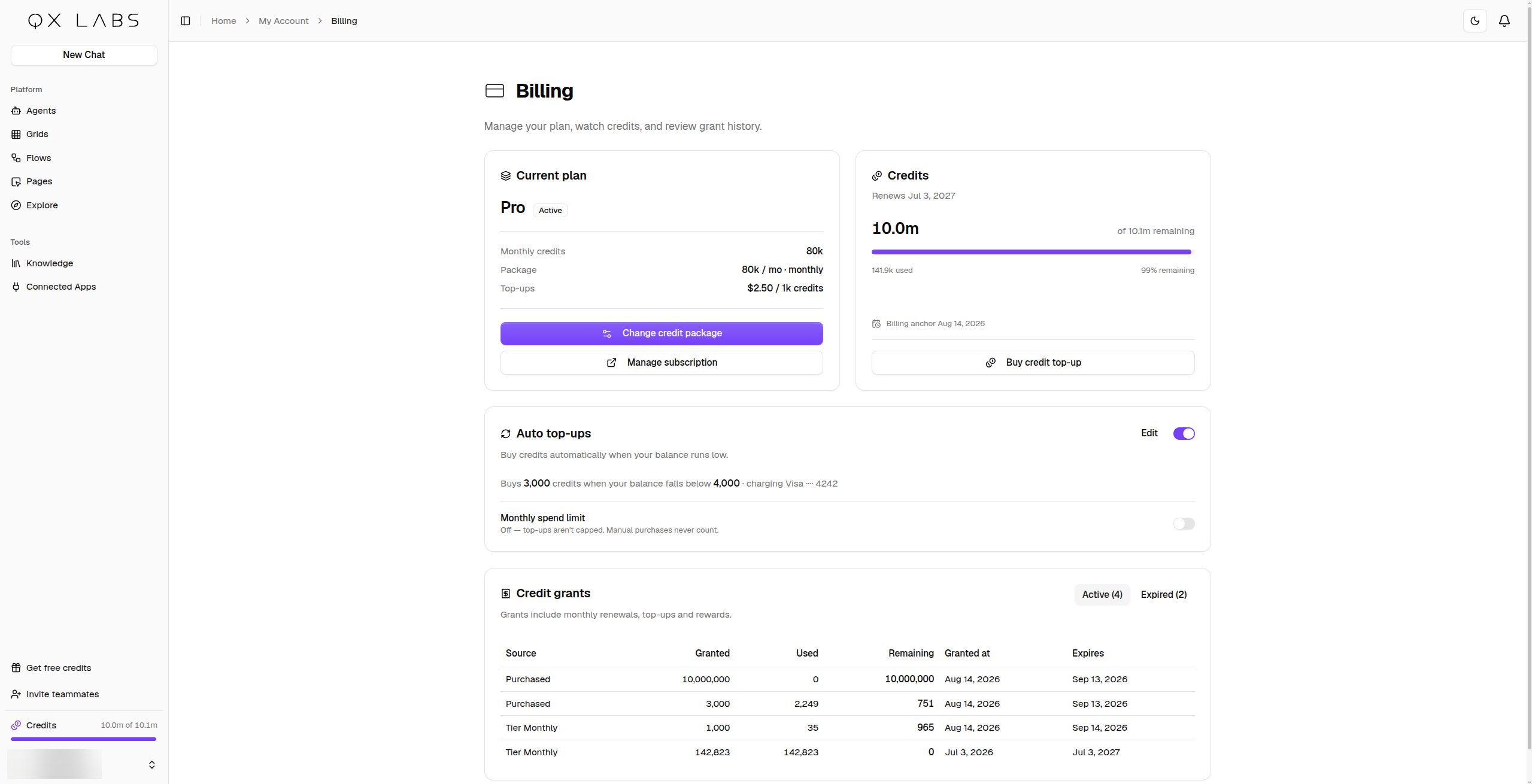
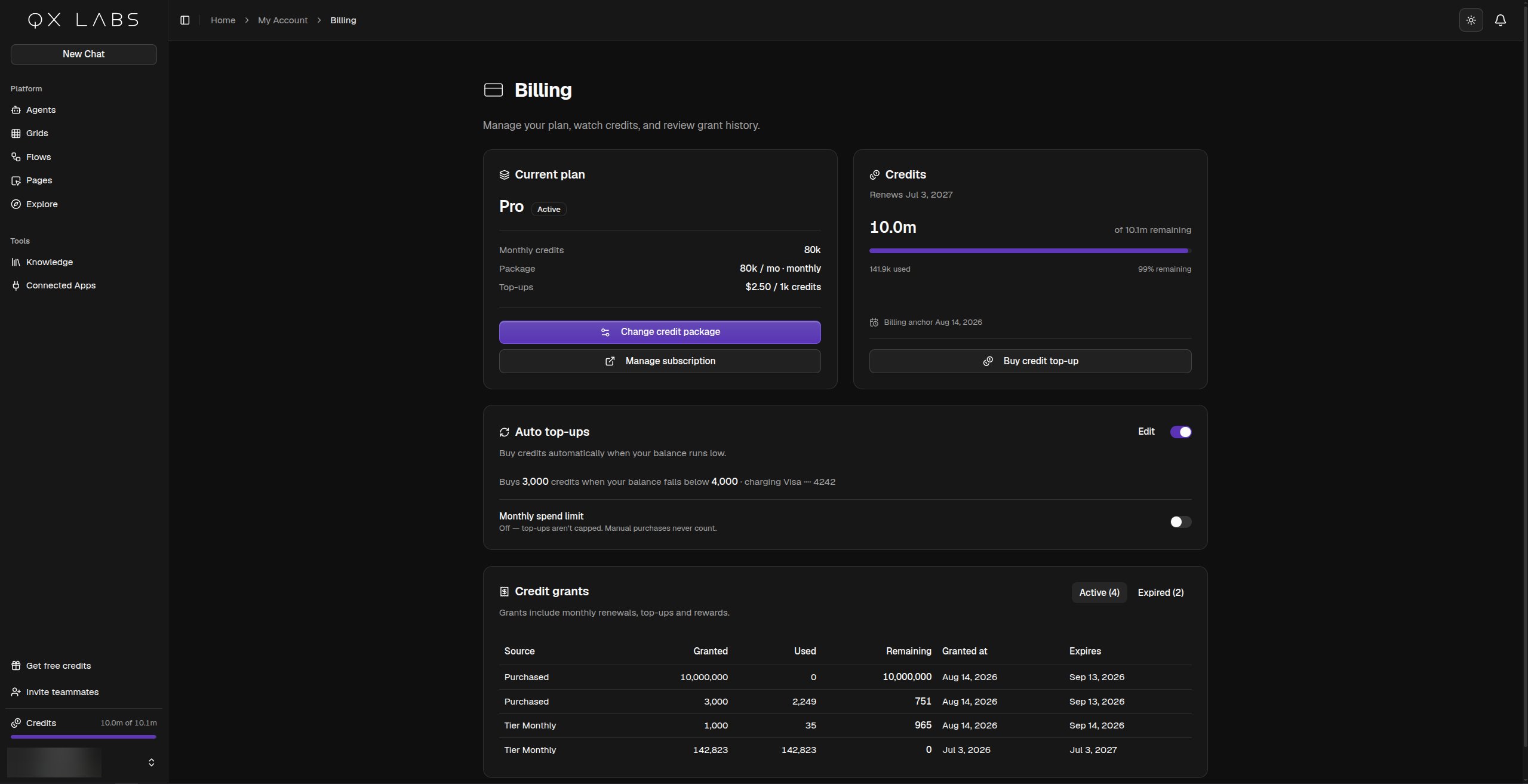
You manage all of this on the Billing page. Open your profile menu at the bottom of the sidebar and click Billing. On Pro, the package you pick sets how many credits you get each month, and you choose whether to pay monthly or yearly. Yearly billing gives you a 20% discount. Only the organization owner can make changes.
What uses credits
Credits are spent whenever AI does work for you.- Chatting with agents, on the web or from any channel, including anything they do for you along the way
- Running grids, and each column shows its cost per cell in its settings
- Running flows, for the AI and app nodes in each run
- Building with AI, when a builder creates a flow, grid, or agent for you
- Adding knowledge, when documents are processed into a vault
- Using your Spaces, when people use an app’s AI features or the built-in apps it calls
Buying more credits
On Pro, click Buy credit top-up on the Billing page, choose an amount, and complete the checkout. The credits are added to your balance as soon as the payment goes through. On Free, upgrade to Pro first.Everyone can earn free credits. Click Get free credits in the sidebar and share your invite link. When someone signs up with your link and connects 3 apps, you both get 3,000 credits.
Automatic top-ups
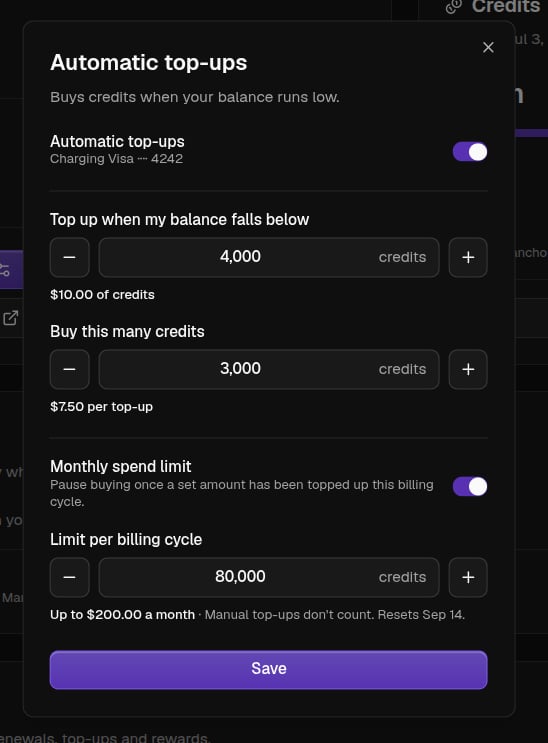
You can also let QX keep your balance topped up for you. On the Billing page, switch on Auto top-ups and its settings open, or click Edit to change them later. Set Top up when my balance falls below to choose your trigger, and Buy this many credits to choose how much to buy each time. When your balance falls below the trigger, QX buys the credits with your saved card. Each field shows what the amount costs, so you know the price before you save. To cap what this can spend, turn on Monthly spend limit and set Limit per billing cycle. Once automatic top-ups have bought that many credits within a cycle, QX pauses buying until the next cycle starts, and the dialog tells you the date it resets. Pausing never switches automatic top-ups off. Credits you buy yourself do not count towards the limit and are never blocked by it. Leave the limit off and QX tops up whenever your balance runs low. Automatic top-ups need a Pro plan with a card on file, and only the organization owner can change the settings. If a payment fails, the owner gets an email and QX tries again the next time your balance runs low.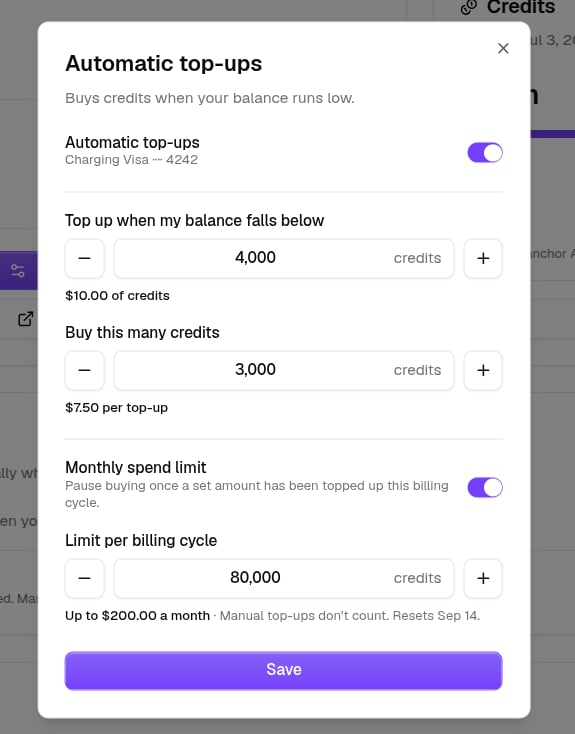
Tracking usage
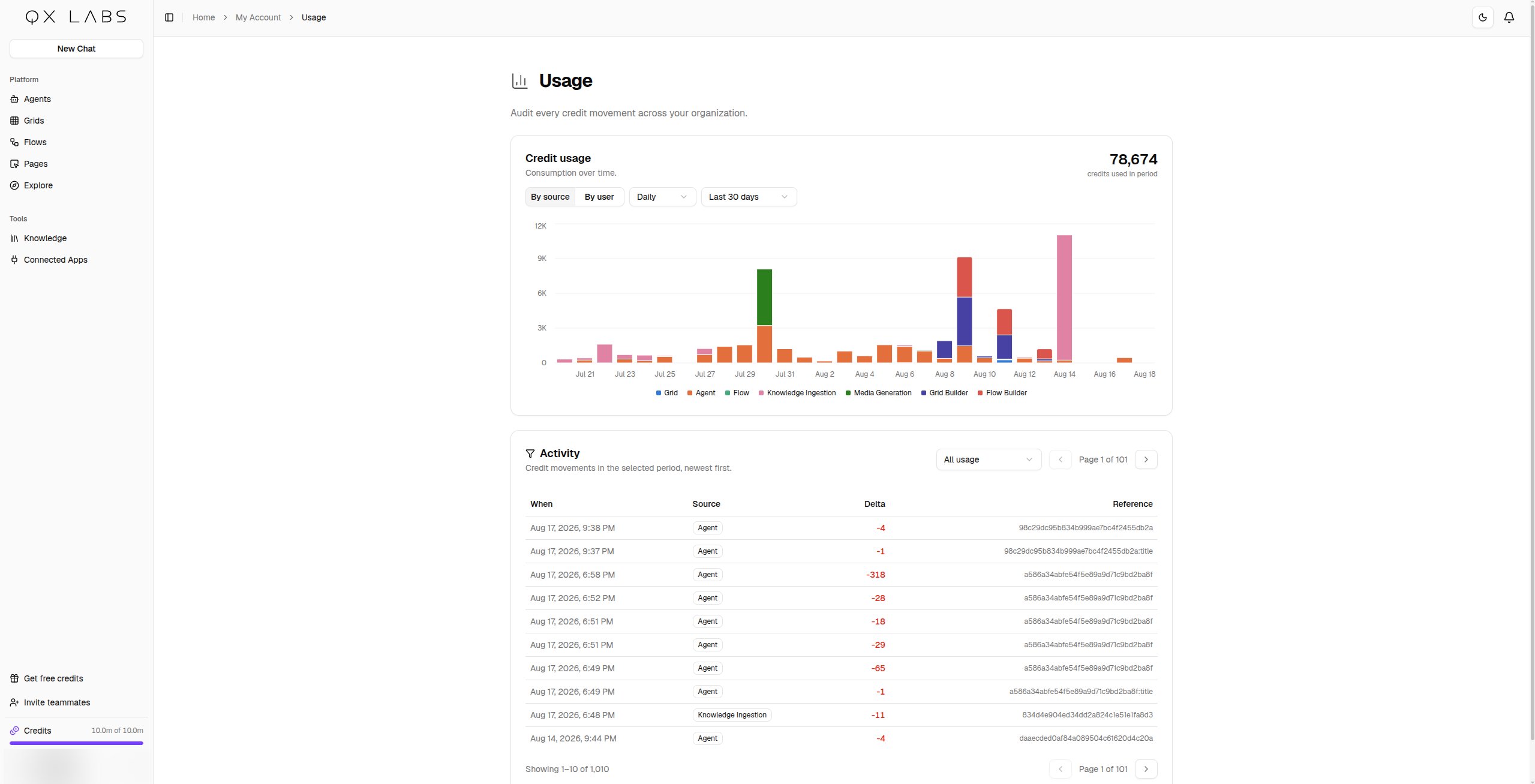
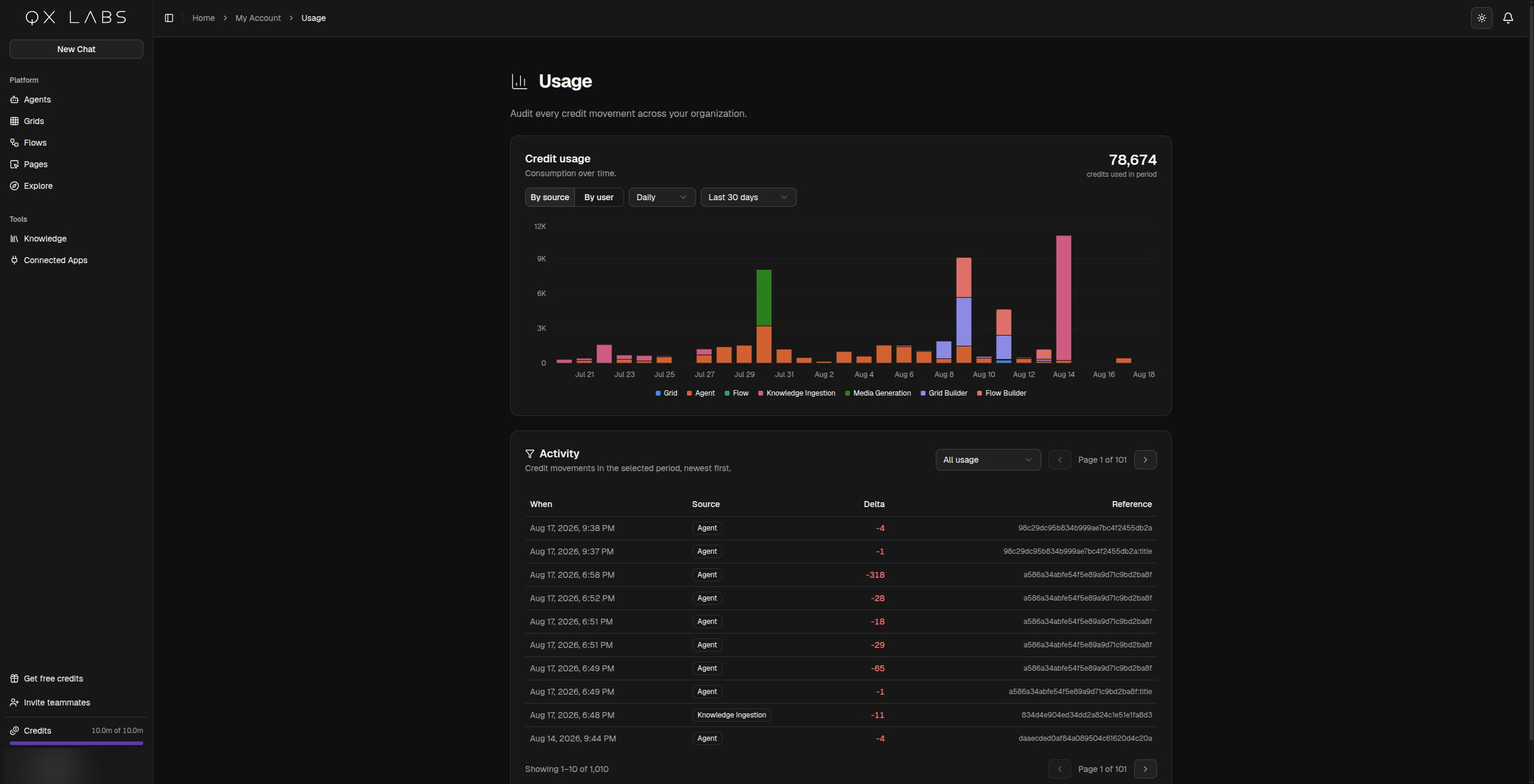
Your remaining credits always show at the bottom of the sidebar. For the full picture, open Usage from your profile menu. The chart shows usage over time, by source or by team member, and the activity list below it shows every credit movement, newest first, with a filter for each source.