

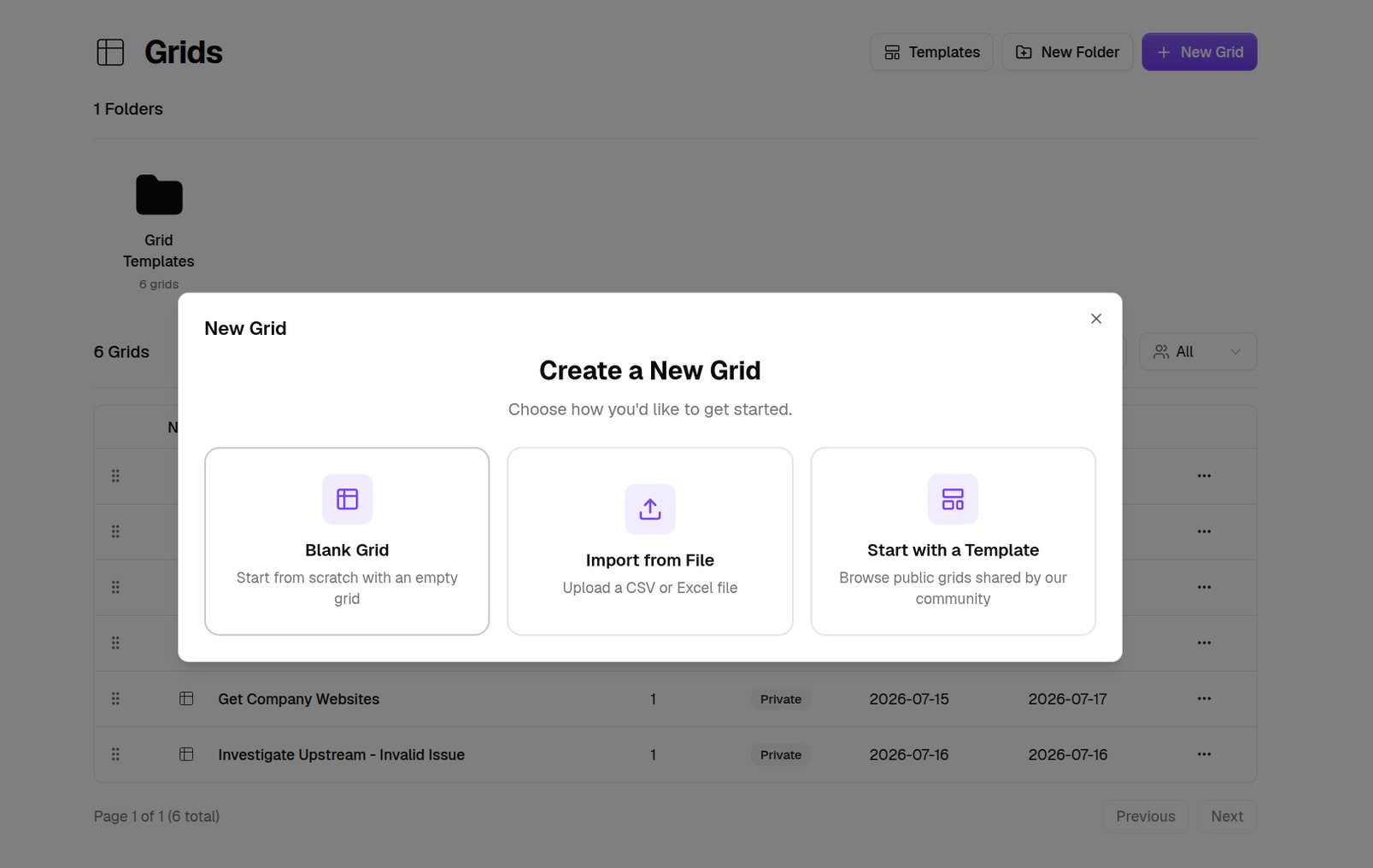
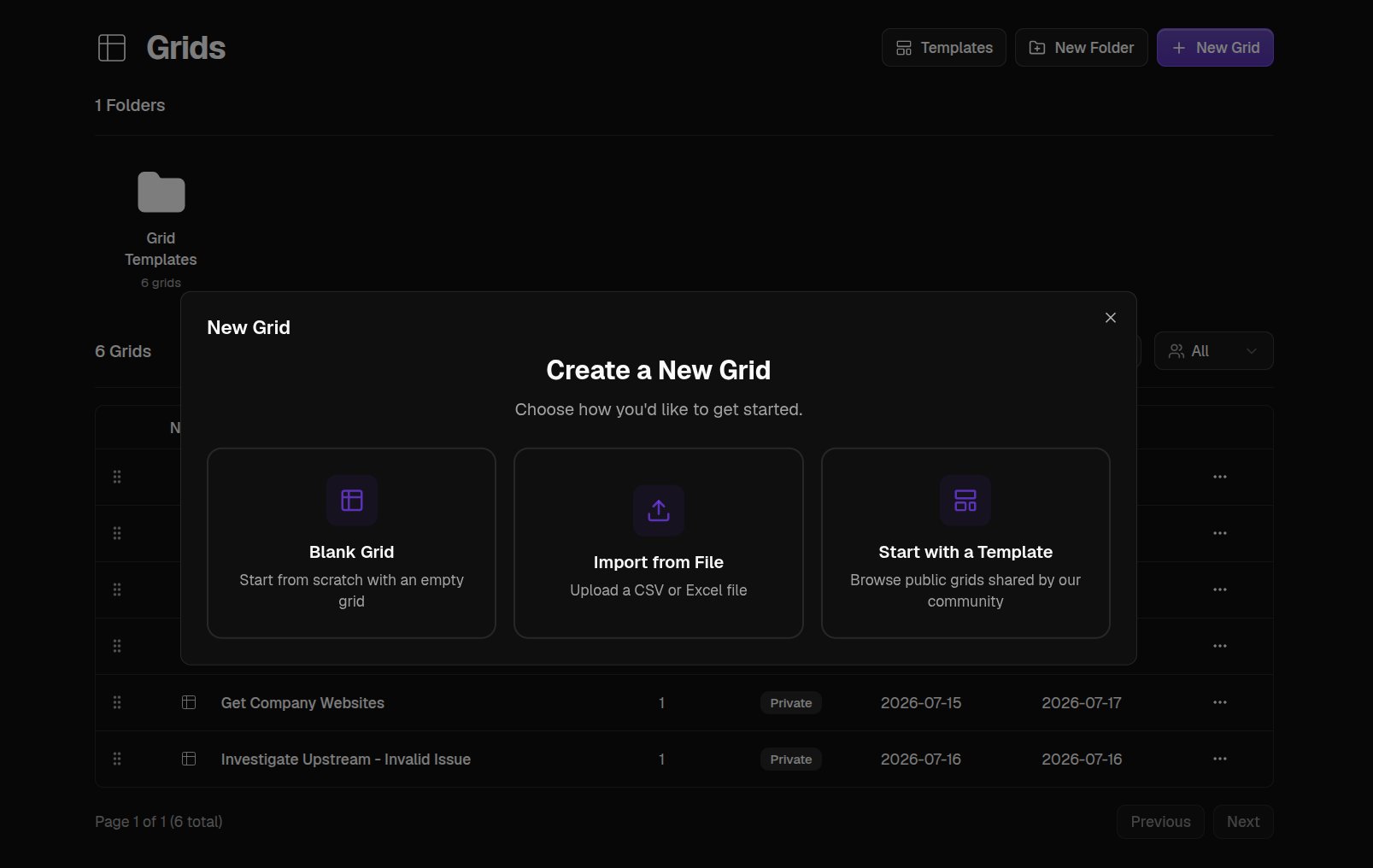
- Blank Grid starts you from scratch. It opens with one empty column and row waiting for you, and nothing is saved until you name that column, enter a value, or start describing what you want in the Chat tab. Leave a grid you never touched and you are asked whether to keep or discard it.
- Import from File uploads a CSV or Excel file. QX detects the columns, you tick the ones you want, and the data lands ready for enrichment columns alongside.
- Start with a Template browses public grids shared by the community. Open one and click Import to My Workspace to copy it, then plug in your own data. You choose whether to bring the rows along with Include data, or take the column setup on its own as a Blank template.